Creating an ad hoc case
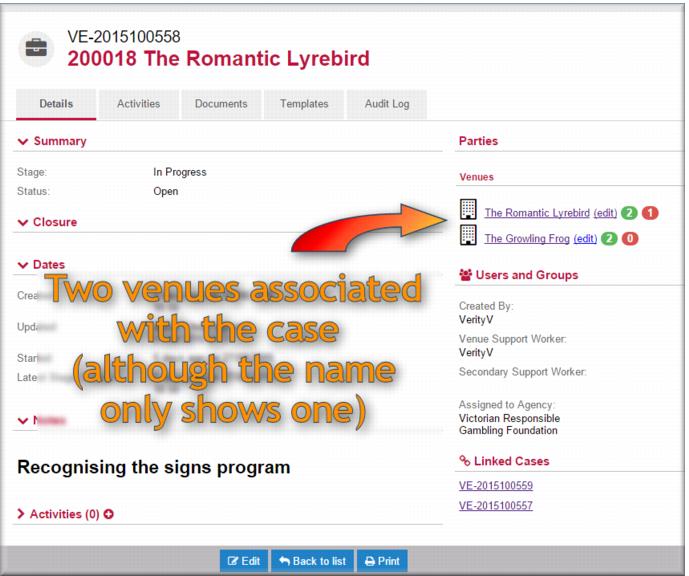
From time to time you might organise a training session involving people from more than one venue. To record this in Gambler’s Help Connect, you create an ad hoc case with each of the participating venues.
| There might be times when the ad hoc case will include venues from different catchments. If this happens you must create a separate case for each catchment. |
To create an ad hoc case:
1 From the menu select New Venue Support.
The New Case screen displays with no venues displayed in the Venues field.
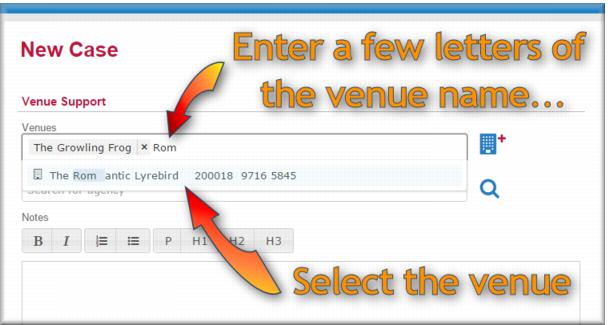
2 In the Venues field, enter the first few letters of the name of a venue you want for the case.
A list of venues matching your search criteria displays.
3 Select the venue you want.
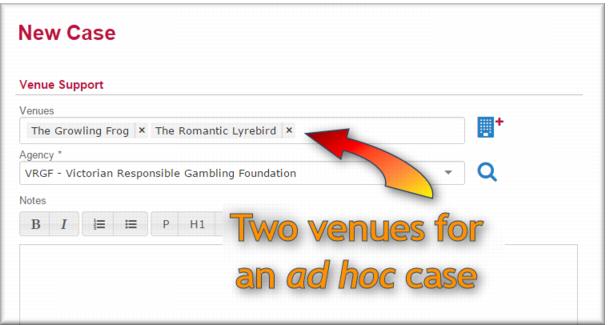
4 Repeat steps 2-3 until all your desired venues display in the Venues field.
5 In the
Agency field,

select the non-client catchment for this venue.
6 In the Notes field enter relevant notes about the training program that you will deliver in this case.
7 In the Assignment section, in the Venue Support Worker, select the name of the person who will be the primary owner of this case.
8 In the
Status section, in the
Stage field,
 In Progress
.
| These next steps are optional but provide a very good way of contextualising the ad hoc case against the annual venue cases. By Linking the ad hoc case to the annual venue cases of each participating venue you create a handy link between the two making it easy for you to navigate between the two records. |
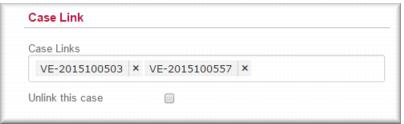
9 In the Case Link section, in the Case Links field, enter the last six digits of the annual venue case for one of the venues, then select the VE case number that displays.
The case number displays in the Case Links field.
10 Repeat step 9 until each of the case number of each of the annual venue cases of each participating venue displays in the Case Links field.
11 Click

.
The new case is created and will now display in the My Cases list of the assigned venue support worker. ![MCj04347500000[1]](../GHC102/images/GHC-102-PM.1.124.1.jpg)
![MCj04347500000[1]](../GHC102/images/GHC-102-PM.1.124.6.jpg)