Pages
When you click a link in the navigation menu or in a record, Gambler’s Help Connect displays a page. There are two main types of page:
 List pages
 where you can view case or client records in a list
Records pages where you can view and edit information about clients, cases or activities.
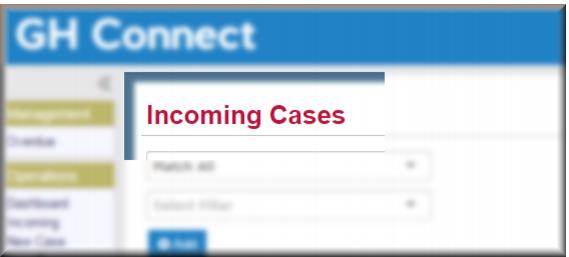
Pages have a red title as illustrated below.
Case, client and activity records page have two modes:
View – you can view a summary of the record information and select tabs to view different aspects of the record
Edit – you can add or update information in the record.
View mode
You can always tell if a record page displays in view mode because you will see the

button at the bottom centre of the page. In the
Client and
Case pages you will also see tabs across the top of the page. You can select these to view more information relating to the client or case.
| Click here to view a detailed illustration of the Case page in view mode and to see a description of each of the tabs. |
The Client and Case pages in view mode also have links you can select to create new cases or activities.
| Click here to view a detailed illustration of the Clients page in view mode showing some of the links you can use |
Edit mode
When a record is open in edit mode you can add or update information in it. To open a record in edit mode, either:
Open the record in view mode and then click

.
Click

next to the record where it displays in a list.
Fields
In Gambler’s Help Connect there are two type of fields where you enter data:
List fields where you select a value from a list
Text (or free-text) fields where you enter words or numbers directly.
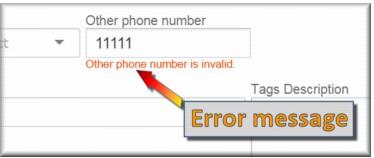
In some text fields, for example telephone number fields, you must enter information in the correct format or Gambler’s Help Connect will not save the page you’re working on. If this happens an error message displays prompting you to enter a correct value.
Predictive search
All list fields in Gambler’s Help Connect have a predictive search function. If you know the value you want to select you can enter the first couple of characters and the list will display all values matching your entry.