Incoming cases
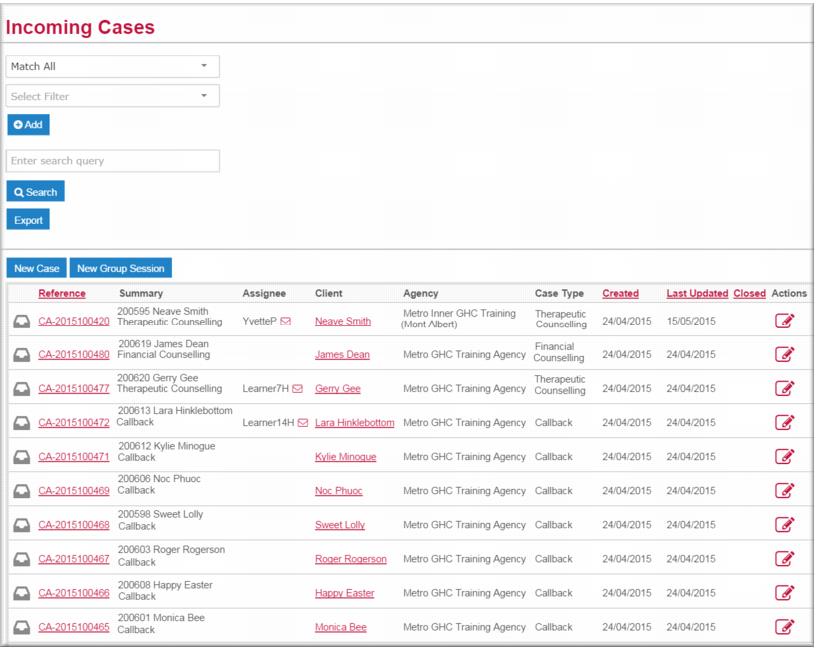
When a new client case is created, Gambler’s Help Connect automatically assigns it the stage of Incoming. All new cases referred to local services by the Gambler’s Helpline display here. As noted above, cases in the incoming stage have until midnight of the following business day to either be acknowledged by the intake worker or accepted by a primary care provider.
| When a case in incoming stage exceeds the time allowed for acknowledgement or acceptance, Gambler’s Help Connect changes the stage to Overdue and moves the case to the Overdue list. If you were planning on accepting a case in the Incoming list and then couldn’t find it have a look in there. |
You can filter the Incoming Cases list to view cases by a particular attribute, for example, team or case type. From the Incoming Cases list you can:

Open a case in view mode by clicking the
case link.
Open the case in edit mode by clicking the edit icon

.
Open the client record in view mode by clicking the
client link.
Send an email to the primary care provider by clicking the email icon

.
| For more information on how to use filter your list results, see Using search filters. |
![MCj04347200000[1]](../GHC102/images/GHC-102-PM.1.020.1.jpg)
![MCj04347500000[1]](../GHC102/images/GHC-102-PM.1.020.5.jpg)