![MCj04347500000[1]](../GHC102/images/GHC-102-PM.1.024.1.jpg) | If you need to query the case history of a client at a different agency you need to use the client search and then view the case list for that client. |
| If you need to query the case history of a client at a different agency you need to use the client search and then view the case list for that client. |
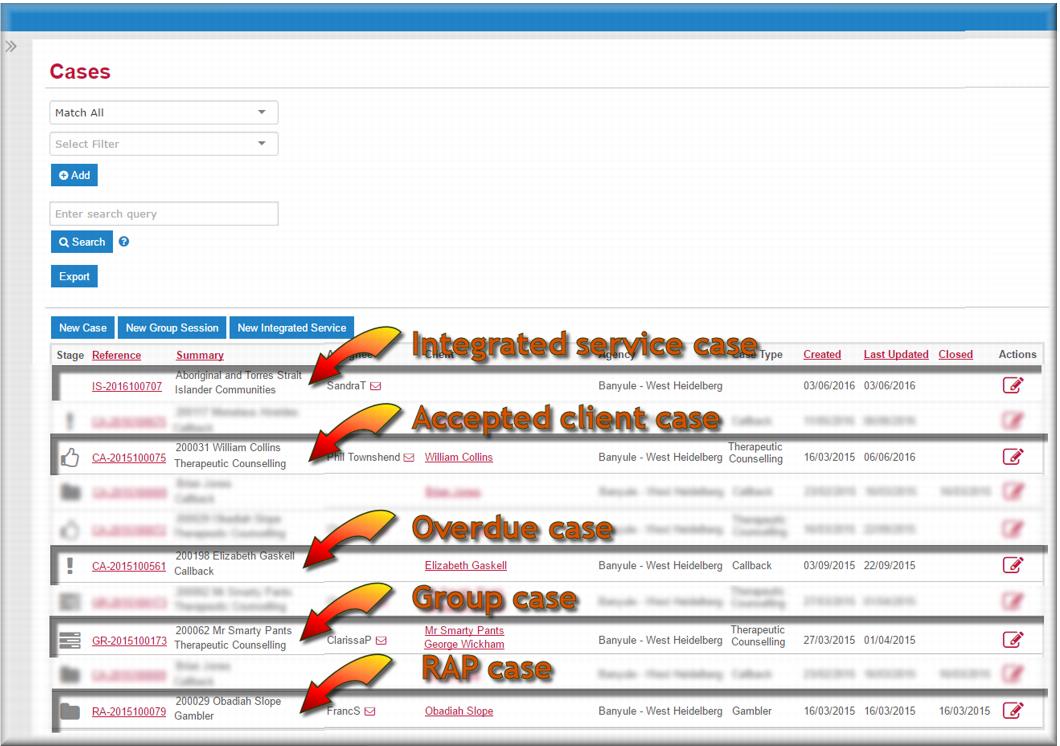
 it displays all cases at your agency. You can filter your cases search to display cases meeting particular search criteria. For example, you can filter a case search to find cases assigned to a specific care provider, or cases where the client is an affected other.
 to export the list as a .csv file you can open and edit in Excel.
 to create a new case.
 to create a new group case.