 Client identity and contact preferences – where you specify the client’s identity details and their contact preferences and expectations. Client identity and contact preferences – where you specify the client’s identity details and their contact preferences and expectations.
 ![MCj04347500000[1]](../GHC102/images/GHC-102-PM.1.040.01.jpg) | Completion of this section is essential both for therapeutic or financial counselling and callback cases. |
Counselling – where you specify the address details for therapeutic or financial counselling clients as well as optionally including tags to alert all users of this client record to important attributes of the client such as a disability.Other demographic information – where you specify demographic and socio-economic descriptors of therapeutic or financial counselling clients.Justice clients – where you specify relevant details of clients referred to the program from the justice system, such as a client referred as part of a community corrections order.Self exclusions – where you specify details of any current self exclusion deeds the client might have.![MCj04347500000[1]](../GHC102/images/GHC-102-PM.1.040.02.jpg) | The illustration of this screen is presented in sections for better viewing. |
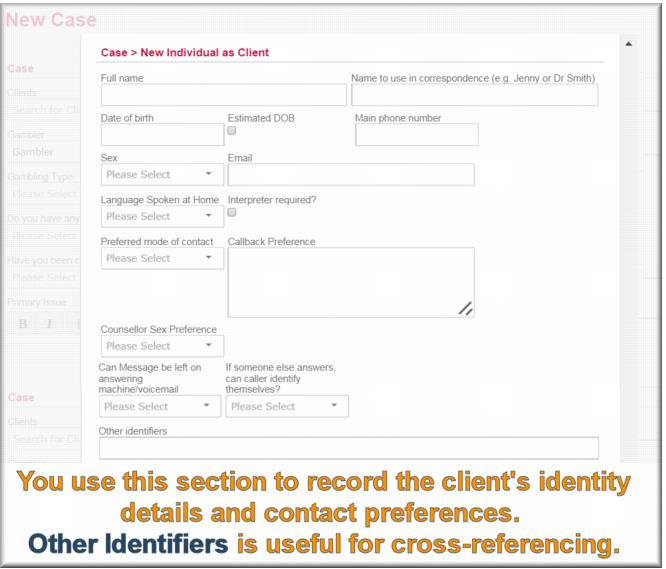 Full Name
 ![MCj04347500000[1]](../GHC102/images/GHC-102-PM.1.040.04.jpg) | Where clients are known by more than one name, such as a maiden name and a married name, or where they have alias names, just enter each name separated by a comma. Any of these will then show up in a search. |
Date of Birth Main Phone Number – this can be a landline or mobile number. If the client wants to receive SMS reminders of appointments it must be a mobile number.Sex Email Language Spoken at Home.Preferred mode of contactCallback Preference - enter the client’s preferred times and days for contact.Counsellor Sex Preference select the client’s preference.Can Message be left on answering machine/voicemail If someone else answers, can caller identify themselves? 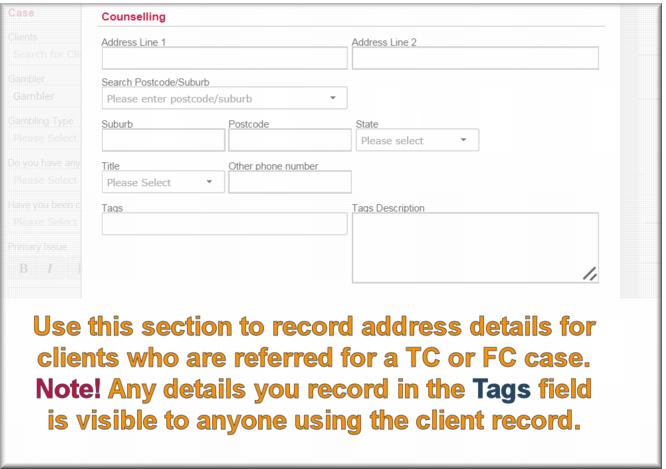 The client’s street address in the Address Line 1 field.The client’s preferred Title.An alternate phone number in the Other phone number field.
 select a tag to apply to the client record and then, in the Tags Description field enter a brief description.
![MCj04347200000[1]](../GHC102/images/GHC-102-PM.1.040.07.jpg) | Don’t forget that tags, being applied to the client record, are visible to all Gambler’s Help Connect users with a therapeutic counsellor, financial counsellor or telephone counsellor profile. |
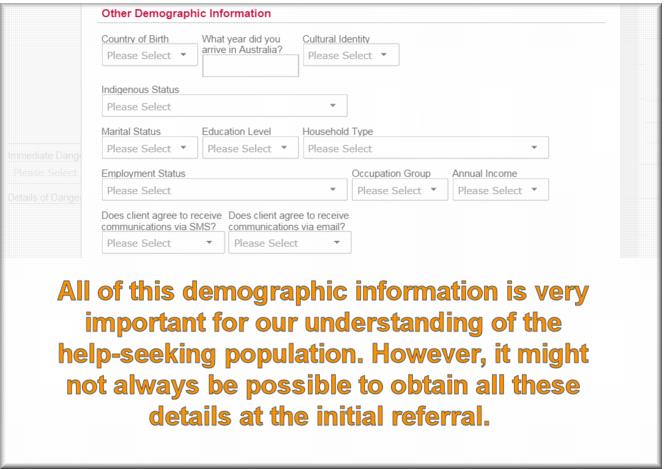 Country of BirthCultural Identity Indigenous Status.Marital StatusHousehold Type.Education Level Employment Status Occupation Group Annual Income.Does the client agree to receive communications via SMS? Does the client agree to receive communications via email?
 ![MCj04347500000[1]](../GHC102/images/GHC-102-PM.1.040.09.jpg) | You must record a mobile number as the main phone if the client is to receive SMS reminders. |
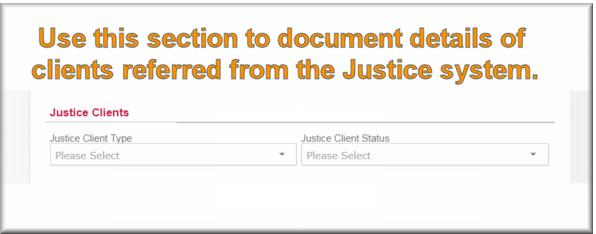 Justice Client Type, the program from which they have been referredJustice Client Status.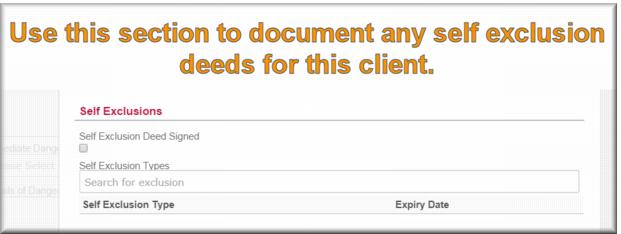
 select Self Exclusion Deed Signed. Self Exclusion Types – use the predictive search to select either AHA or Crown and then enter the expiry date for the deed.
 .
.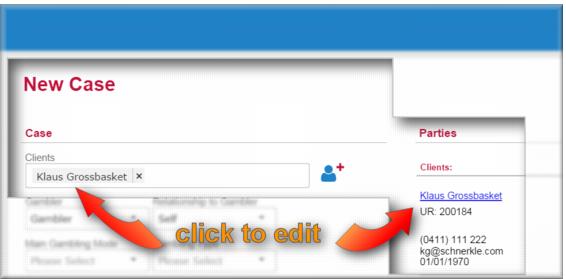
![MCj04347500000[1]](../GHC102/images/GHC-102-PM.1.040.15.jpg) | The client’s name now displays in the Clients field and a link to the client record also displays under the Parties heading. You can return to the client page at any time by clicking either of these links. |