Processing activities for cases with more than one venue
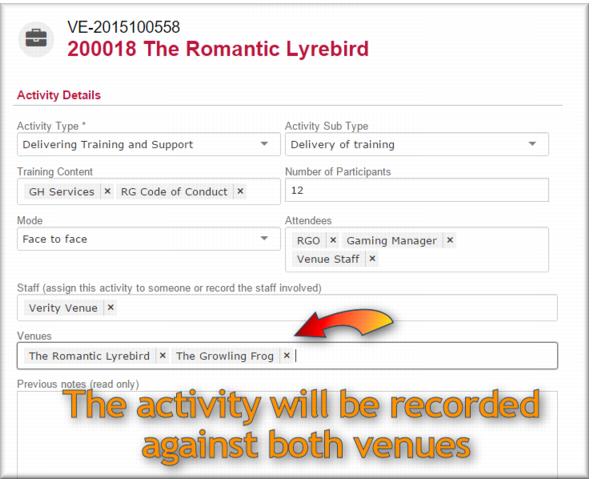
When you set up a case for a training program involving people from more than one venue, the activities you record respecting that program need to reflect this:
1 Open the ad hoc case in view mode.
2 In the
Activity section click

.
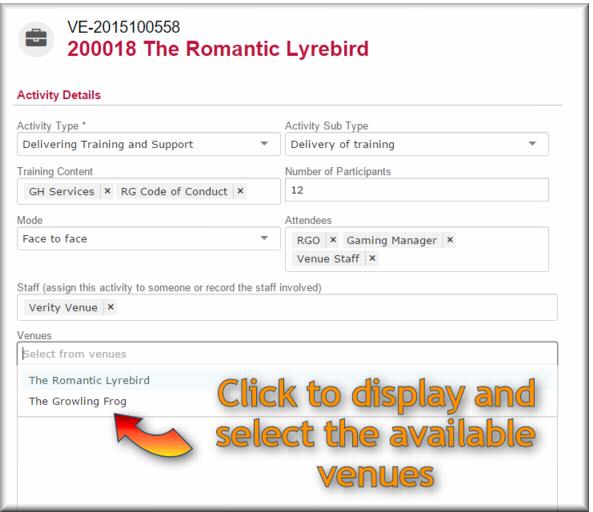
The new activity screen displays. 3 Completed the activity details fields as appropriate:
 Activity type
 and
Activity sub typeTraining content Number of participants Mode Attendees Staff.
4 Click in the Venues field.
The list of venues associated with the case displays.
5 Select the venues for the activity.
6 In the New notes field, enter your notes for the activity.
7 In the
Location field,

select the location of the activity.
8 In the
When field,

select the date and time of the activity.
9 In the
Activity Duration (H:M) field

select the duration.
10 In the
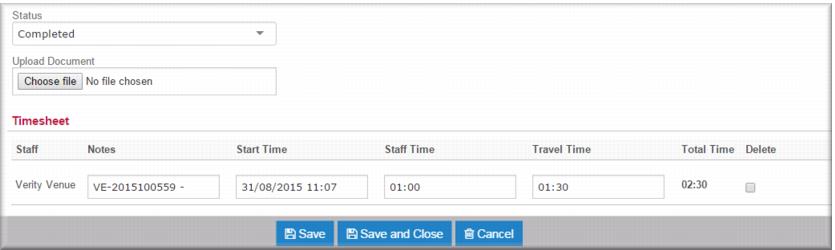
Status field,

select
Completed.
The timesheet displays. 11 Specify staff time and travel time as applicable.
12 Click

.
You can now record training feedback from the participants. | In the event that your training program includes venues from more than one catchment you create separate ad hoc cases for each catchment and record the above activity against each case. You distribute the time across the activities according to your local agency policy. |
Recording training feedback
After you provide training to venue workers you need to record their feedback. You do this in the activity for the training session.
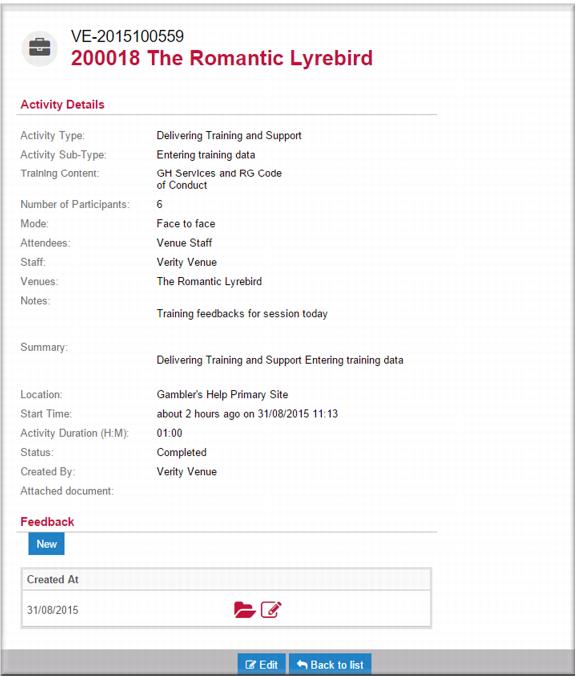
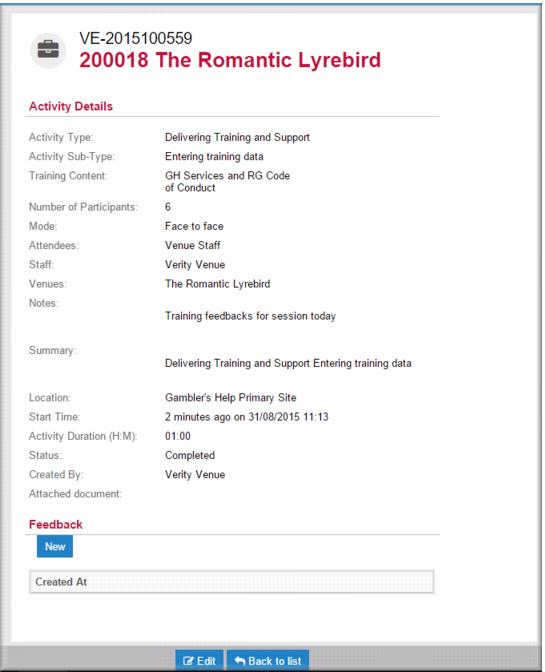
When you save and close an activity the record displays in view mode:
1 In the
Feedback section, click

.
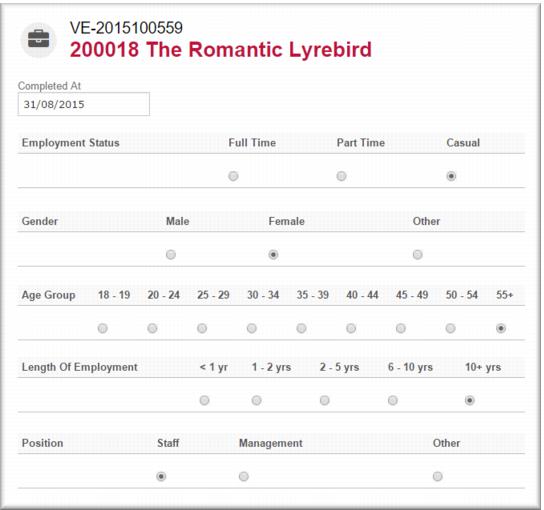
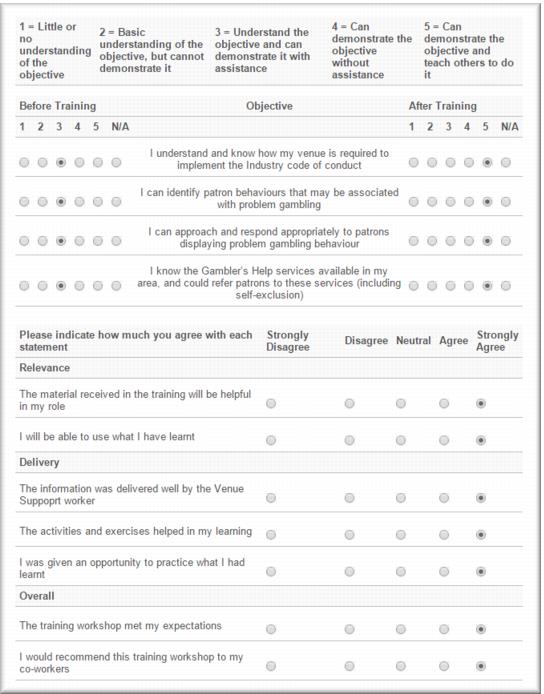
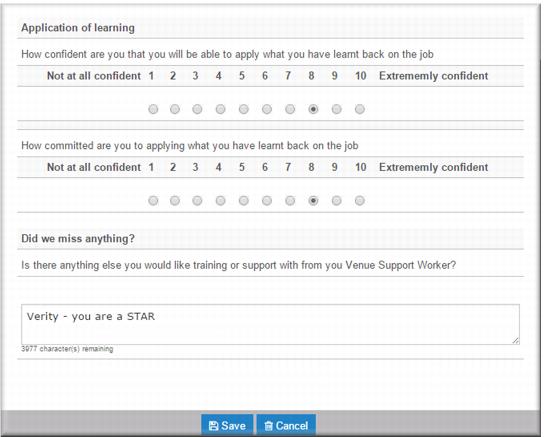
The feedback sheet displays. The completed at date defaults to today’s date. | Illustrations of the feedback form are split into sections for easier viewing. |
2 Using the radio buttons enter the personal descriptor values.
3 Using the radio buttons complete the feedback sections for:
Objective
Relevance
Delivery
Overall.
4 Complete the Application of learning section and add any additional comments as applicable.
5 Click

.
The Activity displays in view mode with the feedback record displayed in a list. 6 Repeat steps 1-5 for each feedback sheet received from the training at the venue.
![MCj04347200000[1]](../GHC102/images/GHC-102-PM.1.129.10.jpg)
![MCj04347500000[1]](../GHC102/images/GHC-102-PM.1.129.13.jpg)