Attaching documents to venue support cases
You can attach documents of most common file types to a case record as applicable. Using the Documents keyword search you can search for documents by any words in the document filename, title or description.
When you attach a document you have the option of editing the document metadata to facilitate document searching.
To add a document to a case:
1 Save a copy of the document you want to attach to your PC or a network drive.
2 Open the case to which you want to attach the document.
3 Click the Documents tab.
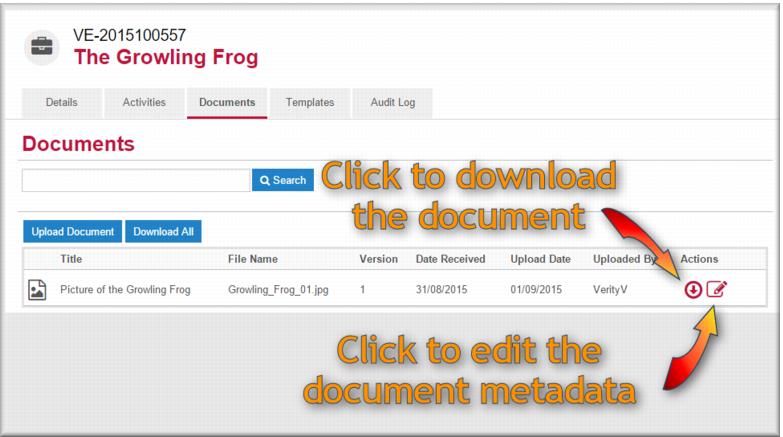
The Documents tab displays.
4 Click

.
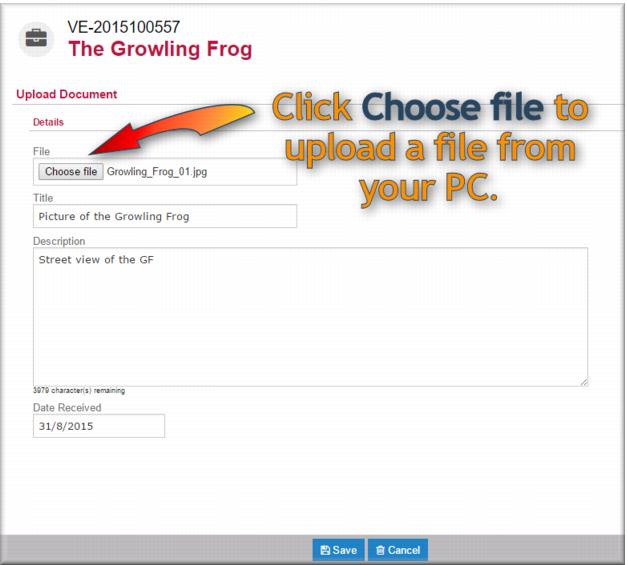
The Upload Document screen displays. 5 In the
File field click

.
The standard Windows open file screen displays. 6 Locate the file you want to attach and click

.
You return to the Upload Document screen with the document listed in the File field.
7 In the Title field enter the title you want for the document.
8 In the Description field enter a description of the document.
9 In the
Date Received field

select the date the document was received.
10 Click

.
The saved document displays in the documents list. Downloading a document
To view or print an attached document you need to download it:
1 Open the case and click the Documents tab.
2 In the
Action column click

next to the document you want to download.
The document is saved to the Downloads folder on your PC.