RAP and the GST
The lump sum payments given to the agencies by the VRGF include a 10% loading to cover GST. For example, if a particular agency required RAP funding amount of $10,000 then the VRGF would provide $10,000 + $1,000 (10%) = $11,000 total.
Payments made by an agency on behalf of a client, for example, the payment of a bill do not incur a GST component for the agency. The GST amount is applicable between the service provider e.g. Melbourne Water and the client, but not the agency. As far as the agency is concerned, they pay a total amount.
So if a bill had a total amount of $110.00 ($100 + $10 GST) to be paid, then the agency would make the payment of $110. This amount ($110) is the monetary value that would be reported back to the VRGF as the amount of RAP funding used. The GST amount of $10 in this scenario cannot be claimed back from the ATO by the agency, as the agency is not actually providing a service and therefore not charging GST. Agencies are responsible to fulfil their financial recording and reporting requirements, therefore the foundation cannot mandate how they treat the GST.
Reviewing a client’s RAP history
Since client’s RAP eligibility is limited to a maximum of $2500 over a twelve month period, you need to check their RAP history before making a new payment.
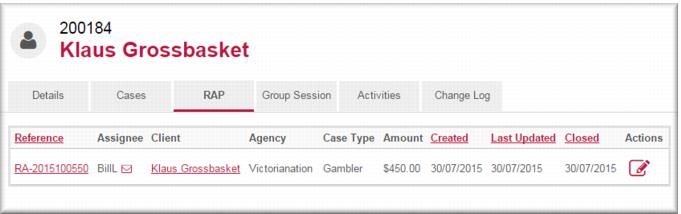
To check a client’s RAP history, open the client record and select the RAP tab. All RAP payments at all agencies for that client display.
Creating a RAP case
To create a RAP case the client must have at least one therapeutic or financial counselling case.
1 Open the case to which you want to attach the RAP case.
2 In the Linked Cases section click Link a new RAP.
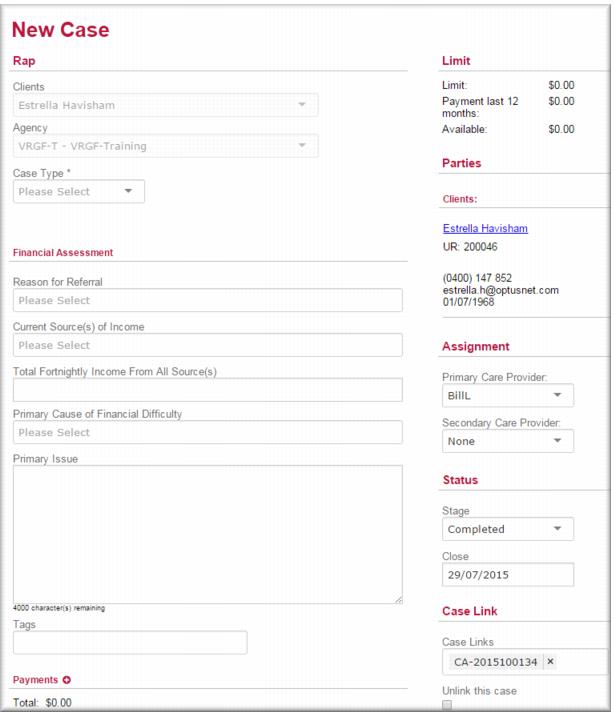
The New Case for RAP screen displays. The case stage is set to Completed. The Limit section shows how much RAP funding the client has received in the last twelve months and how much funding they remain eligible for.
3 In the
Case Type field,

select the
RAP case type. (Gambler, Family or Affected Other).
4 Choose an option:
If… | Then |
…if the Guidelines indicate this RAP case requires a financial assessment… | Go to Step 5 |
If the Guidelines indicate this RAP case does NOT require a financial assessment… | Go to Step 6 |
5 In the Financial Assessment section:

In the
Reason for Referral field,

select the reason or reasons for the client’s referral for RAP
In the
Current Source(s) of Income field,

select the client’s present source or sources of income
In the
Total Fortnightly Income From All Source(s) enter the client’s total income
In the
Primary Cause of Financial Difficulty,

select the cause or causes of the client’s present financial distress
In the
Primary Issue field, enter a summary of the issue(s) that led to this RAP referral.
6 In the
Payments section click the add icon

.
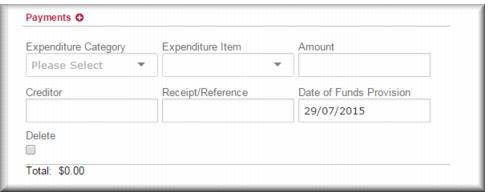
The payments fields display. 7 In the
Expenditure Category field,

select the category.
8 In the
Expenditure Item field,

select the item matching the category.
| The expenditure item list is derived from the expenditure category you select. There is no corresponding item for the Family/Community Reconnection category. |
9 In the Amount field, enter the payment amount for this item.
10 IF the RAP payment is for a bill enter the name of the payee in the Creditor field.
11 
Select the payment date in the
Date of Funds Provision field.
12 Click

.
The total payment for this RAP case displays in the Total field and in the
Limit section in the top right corner of the page.
13 Repeat Steps 6–12 for each payment you want to authorise in this RAP case.
14 IF this RAP case is linked to a therapeutic counselling case, you must add the financial counsellor who conducted the financial assessment to the case. In the
Assignment section, in the
Secondary Care Provider field,

select the financial counsellor.
15 Click

.
The RAP payments are added to the total for the client record and the RAP case is added to the cases list for that client. | After completing the RAP case you need to record an activity to account for the time you (and any colleague who worked on it with you) spent on processing the RAP payment. You do this in the parent TC or FC case from which you initiated this RAP payment. |
![MCj04347500000[1]](../GHC102/images/GHC-102-PM.1.056.11.jpg)
![MCj04347500000[1]](../GHC102/images/GHC-102-PM.1.056.16.jpg)