Processing a COS1
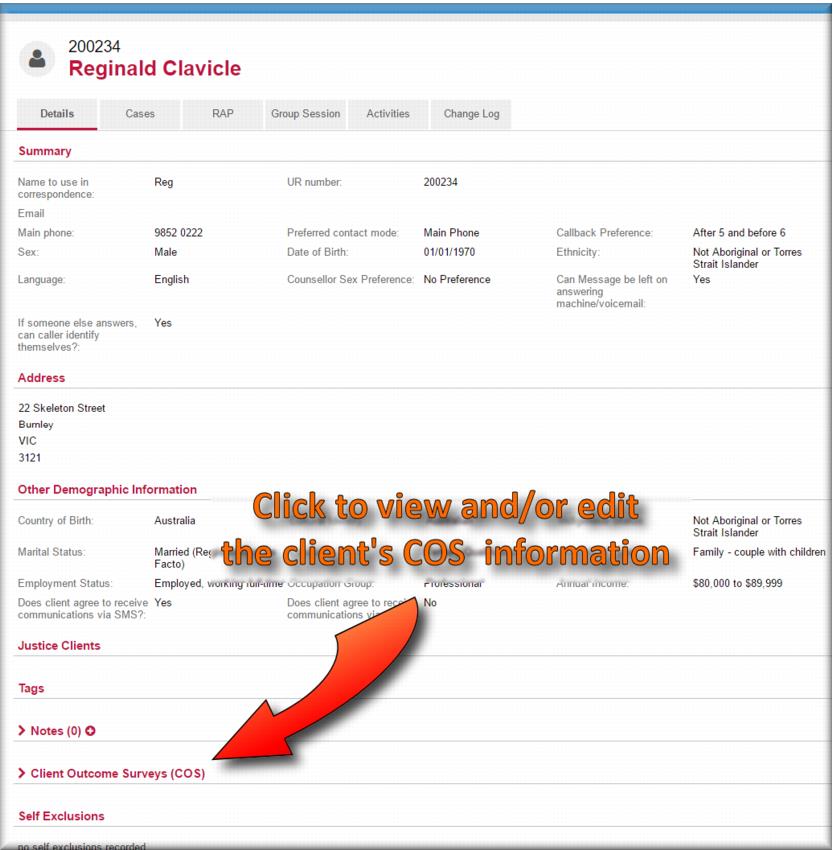
The COS 1 is expected to be completed as close as is practicable to the first appointment with the client. This can be for either a therapeutic or financial counselling case. You access the COS from the Client Outcome Surveys (COS) section on the Details tab of the client record in view mode.
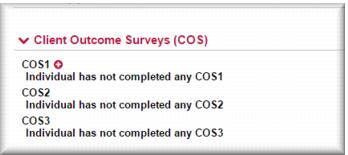
1 Open the client record in view mode and expand the Client Outcome Surveys (COS) section.
2 Click the

next to the COS 1.
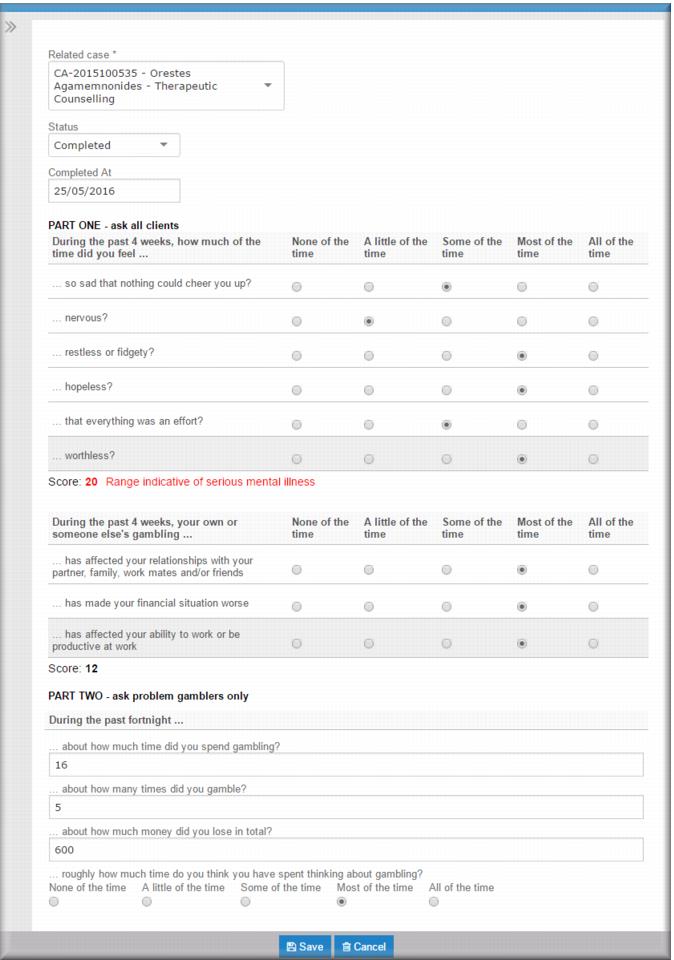
The Client Outcome Survey form displays with all fields blank except the Status field which displays a status of Scheduled. 3 In the
Related Case field

select the case associated with this COS 1.
4 Using the radio buttons and text fields, enter the client’s responses to the questions.
| As you enter the client’s answers to the questions in Part 1 of the COS a total score displays below each section. |
5 When you have entered all the client’s answers to the questions, scroll back up to the top of the page to the
Status field

select
Completed.
6 In the
Completed At field,

select the date when the client completed the COS (not the date you entered it in the system).
7 Scroll to the bottom of the page and then click

.
The COS is saved and a COS 2 is queued to the Gambler’s Helpline for a follow up three months from the save date.
Cancelling a COS 1
There might be occasions when clients refuse consent for the COS or disengage from the service before you can collect the information. If this happens you cancel the COS 1. When you cancel the COS 1 this cancels the COS 2 and 3 also.
1 Open the client record in view mode.
2 Expand the
Client Outcome Surveys (COS) section and click the

next to the COS1.
The Client Outcome Survey form displays. 3 In the
Status field,

select
Cancelled.
The Reason for cancellation field displays. 4 In the Reason for cancellation field

select the reason.
5 In the
Completed at field,

select today’s date.
6 Scroll to the bottom of the page and then click

.
| If the client agreed to complete COS 1 but doesn’t want a follow-up from the Gambler’s Helpline you carry out the same steps as above except you open and cancel the COS 2. |
![MCj04347500000[1]](../GHC102/images/GHC-102-PM.1.059.06.jpg)
![MCj04347500000[1]](../GHC102/images/GHC-102-PM.1.059.15.jpg)