Processing activities
Depending on the context you might either schedule an activity and then complete it after the event, or complete the activity in a single procedure.
If you want a client to receive an SMS reminder, or you want to block out time in your Gambler’s Help Connect schedule (or that of a colleague), then you schedule first and process later. For administrative activities, unscheduled contacts with clients or case type activities where the client wasn’t present, there no need to schedule – you can complete the activity in a single procedure.
There are also slight differences in how you process activities for therapeutic or financial counselling cases, anonymous cases and group cases. The procedures for each are described below.
Processing an unscheduled activity for a therapeutic or financial counselling case
To create a new activity record:

Click

next to the
Activities section on the
Details tab of the case
OR
Click

in the
Activities tab of the case record.
While providing slightly different views of the activity record for the case, either of the above methods yield the same result. It is largely a matter of personal preference which you choose to use.
1 Locate and open the case for which you want to record an activity.
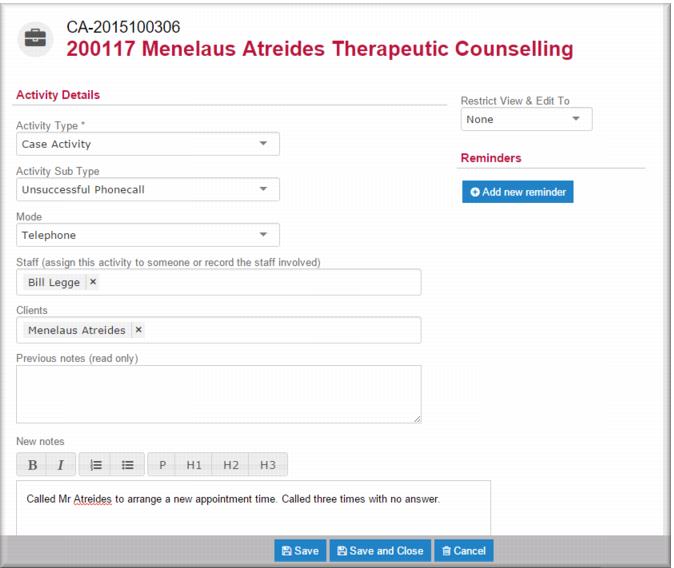
2 Using either of the methods above, open a new activity page.
| The illustration of this screen is presented in sections for better viewing. |
3 In the
Activity Type field,

select the activity type:
Client activities where the client will be physically present or participating by phone
Case activities where the client will not participate in the activity.
4 In the
Activity Sub Type field,

select the required sub type.
5 In the
Mode field,

select the contact mode:
Face to face Telephone Online Other.
6 In the Staff field the name of the primary care provider for the case defaults. You can change this if required.
7 In the Clients field, the name of the client for this case defaults.
8 In the New notes field enter a note about activity.
9 In the
Location field,

select the location where the activity took place.
10 In the
When field,

select the date and time of the activity.
11 IF this was a client type activity,

select the duration of the activity in the
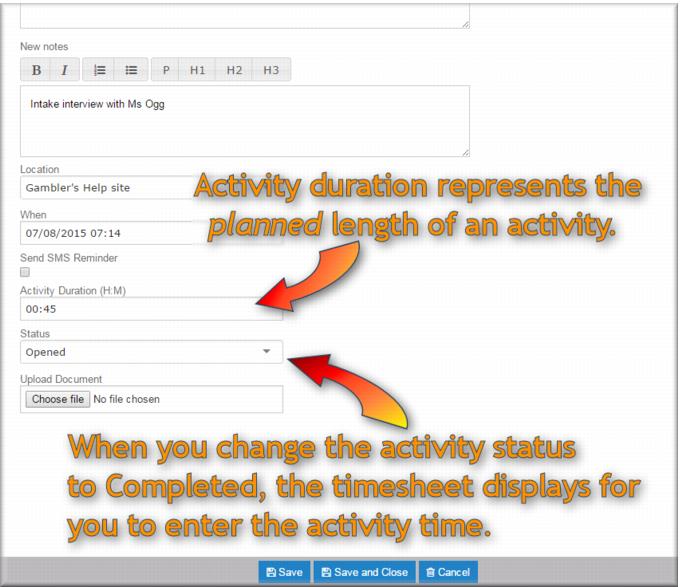
Activity Duration (H:M) field.
12 In the
Status field,

select
Completed.
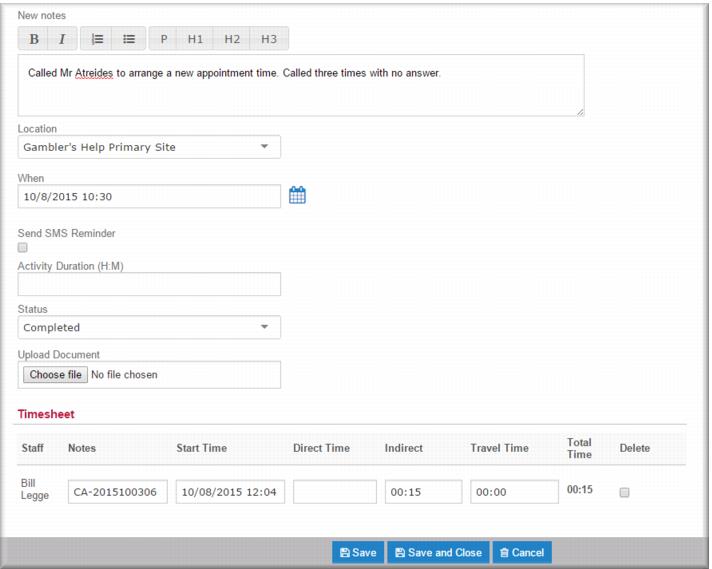
The Timesheet displays at the bottom of the page. If you specified a duration for the activity this value now displays in the Direct time field. 13 In the Timesheet specify direct, indirect and travel time as applicable.
14 Click

.
The activity is completed. The notes you wrote for the activity display in the Previous notes (read only) field.
Scheduling an activity for a therapeutic or financial counselling case
If you want a client to receive an SMS reminder for an upcoming activity you must schedule the activity.
To schedule an activity:
1 Locate and open the case for which you want to schedule an activity.
2 Using either of the methods above, open a new activity page.
| The illustration of this screen is presented in sections for better viewing. |
3 In the
Activity Type field,

select the activity type:
Client activities where the client will be physically present or participating by phone
Case activities where the client will not participate in the activity.
4 In the
Activity Sub Type field,

select the required sub type.
5 In the
Mode field,

select the contact mode:
Face to face Telephone Online Other.
6 In the Staff field the name of the primary care provider for the case defaults. You can change this if required.
7 In the Clients field, the name of the client for this case defaults.
8 In the New notes field enter a description of the planned activity if required.
9 In the
Location field,

select the location for the planned activity.
10 In the
When field,

select the date and time for the planned activity.
11 IF this is a client activity and the client wants to receive an SMS reminder,

select
Send SMS Reminder.
12 In the
Activity Duration (H:M) field,

select the planned duration of the activity.
13 Click

.
The activity is scheduled. | You can also schedule an activity for a client in the edit case page. This can be a simple way to schedule a session for a new client. See Schedule activities if you’re not sure how to do this. |
Setting reminders for an activity
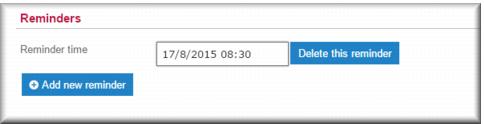
You can set yourself (and/or other participating staff) reminders for scheduled activities. You do this in the Reminders section of the activity record.
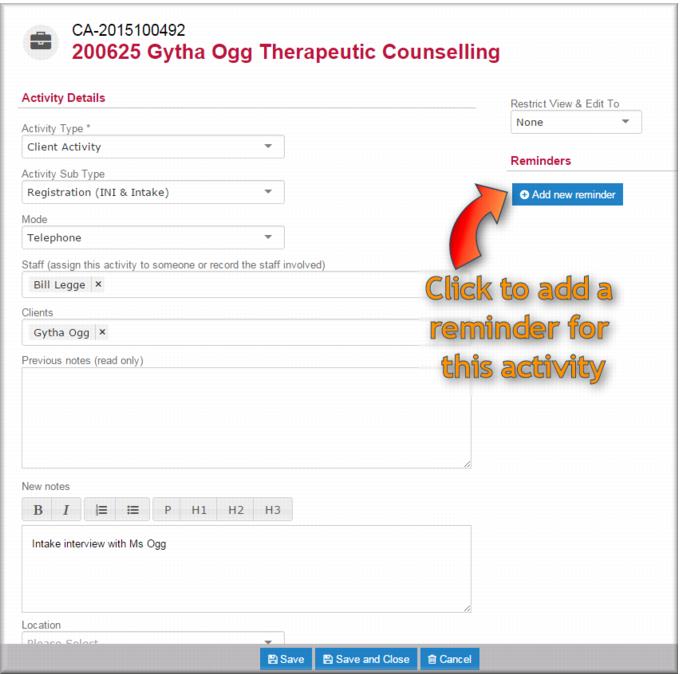
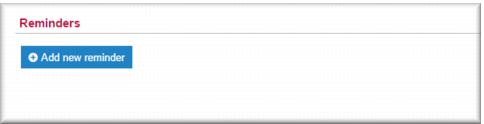
1 With the activity record in edit mode click
.
The Reminder time field displays. 2 Click in the Reminder time field and then select your desired reminder date and time.
The reminder is saved when you save the activity.
| You can add more reminders for the activity if required. You can also change the reminder time as appropriate. To remove a reminder click  . |
Rescheduling activities
If the planned time and date for an activity changes you can reschedule it. This will also reset the trigger for an SMS reminder if one was specified for the activity. If you have set a reminder for the activity for yourself you can reschedule that as well:
1 From the menu select My Activities.
The My Activities list displays.
2 In the list, locate the activity you want to reschedule and click

to open it in edit mode.
3 In the When field, select the new date and time for the activity.
4 IF you set a reminder for yourself for the activity, in the Reminders section, in the Reminder time field select the new date and time for the reminder.
5 Click

.
The activity is rescheduled.\
Completing a scheduled activity for a therapeutic or financial counselling case
To complete a scheduled activity you change the activity status to Completed, record the relevant direct, indirect and travel times for the activity, and add a note.
To locate the activity you want to process you can access it from:
Your
My Activities list or calendar
The
Activities tab of the case record
The
Activities section of the
Details tab of the case record
You activities reminders.
| If you are processing the scheduled activity for someone else you access the activity from the case record. |
1 Using one of the methods described above locate the activity you want to complete.
2 Click

to edit the activity.
The activity opens in edit mode. 3 In the New notes field enter a note to describe the completed activity.
4 In the
Status field,

select
Completed.
The Timesheet displays at the bottom of the page. If you specified a duration for the activity this value now displays in the Direct Time field. 5 In the Timesheet specify direct, indirect and travel time as applicable.
6 Click

.
The activity is completed. The notes you wrote for the activity display in the Previous notes (read only) field.
Processing an anonymous activity
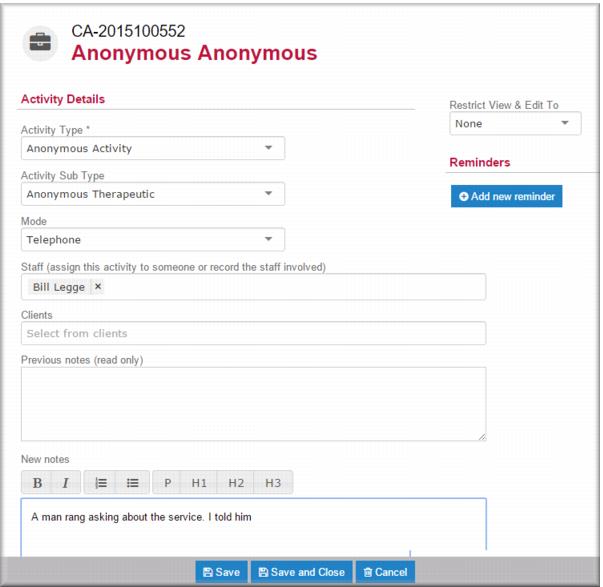
You should always process an anonymous activity as part of recording the anonymous case.
| There should never be more than one activity recorded against an anonymous case – even if the anonymous client re-presents and you know it is the same person, you should still create a new anonymous case and activity. |
1 Complete the anonymous case and click

.
2 Click

in the
Activities section of the case page.
The activity screen for the anonymous case displays. 3 In the
Activity Type field,

select
Anonymous Activity.
| For anonymous cases you only ever use the Anonymous Activity. |
4 In the
Activity Sub Type field,

select the subtype:
Anonymous Therapeutic Anonymous Financial.
5 In the
Mode field,

select the activity mode.
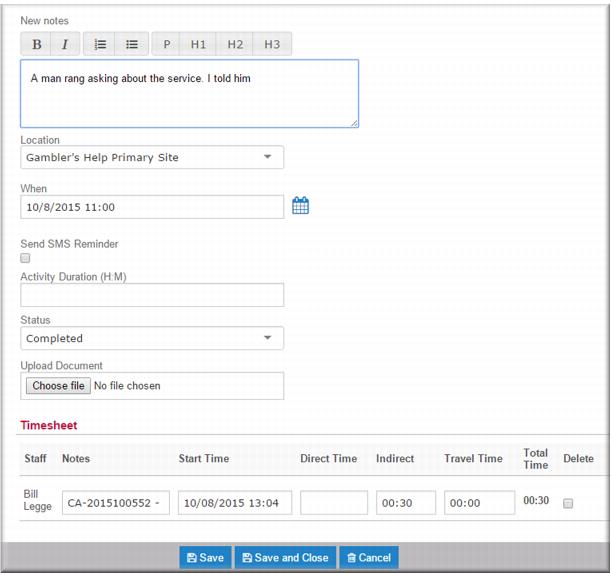
6 In the New notes field, enter a description of the anonymous case and the activity.
7 In the
Location field,

select the location where the activity took place.
8 In the When field, select the date and time of the activity.
9 In the
Status field,

select
Completed.
The timesheet displays. 10 In the Timesheet enter the time you worked on the activity.
11 If appropriate, enter time you travelled for the activity in the Travel Time field.
12 Click

.
Processing activities with multiple staff
Some of your activities might involve more than one person working with the client. For example, a therapeutic counsellor might ask a financial counsellor to attend a session to conduct a financial assessment for RAP. Another example of an activity with more than one participating staff member might be a case review or secondary consultation. Group sessions also might involve participation of more than one counsellor.
| If you want to add a colleague to the activity they must have an active Gambler’s Help Connect login at your service. |
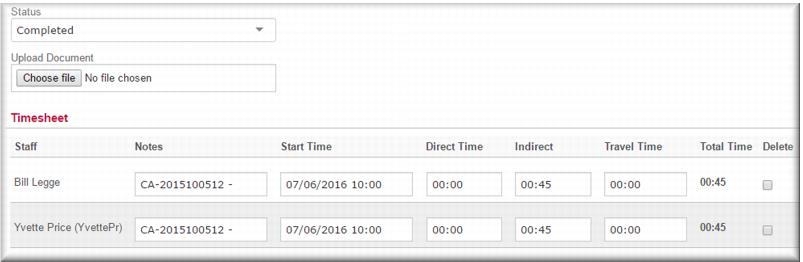
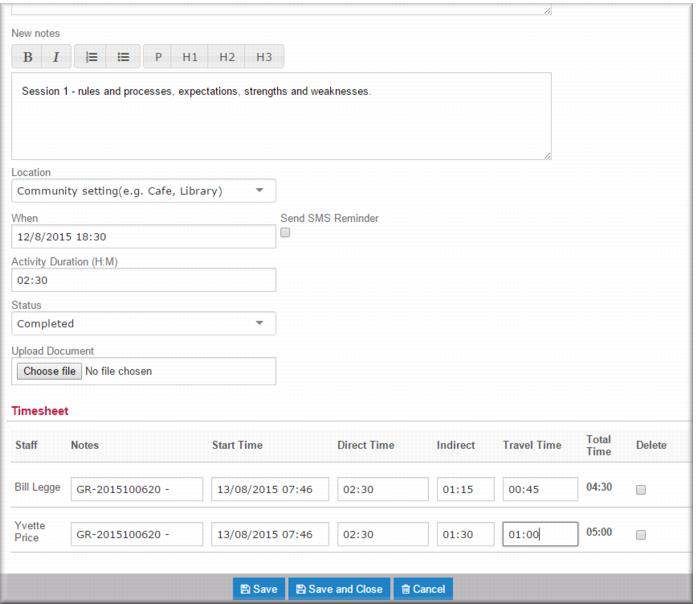
When you initiate a new activity for a case, Gambler’s Help Connect defaults your name in the Staff field. In multiple staff activities, you can add the names of the other participating counsellor(s) in this field. When you set the activity status to Completed, the timesheet displays a new line for each member of staff associated with the activity. You can enter all the times for all participating staff in the one activity.
| The Staff field is a search field. |
To add a colleague to an activity:
1 Open the activity for editing.
The activity displays in edit mode with your name in the Staff field.
2 Specify the activity type, subtype and mode.
3 In the Staff field enter the first few letters of your colleague’s name.
A list of names matching the letters you entered displays.
4 Select the name of your colleague.
The name displays in the Staff field.
5 Complete the other fields for the activity including notes, location, date and time.
6 In the
Status field,

select
Completed.
The Timesheet displays a line for each member of staff listed in the activity. 7 Add the direct, indirect and travel times for each participating staff.
8 Click

.
Processing activities for a family therapy case
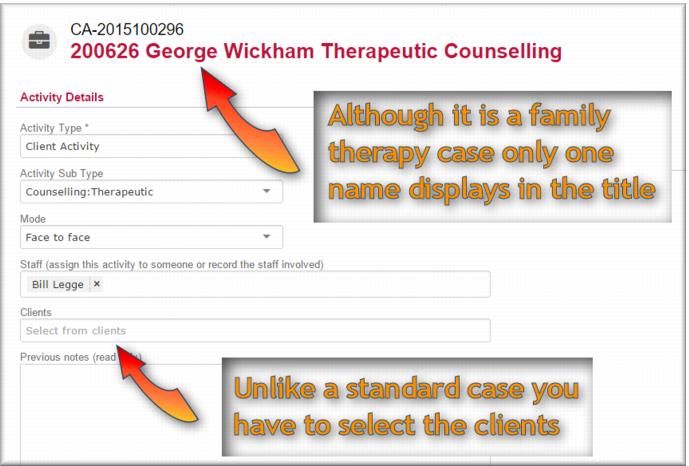
A family therapy case is the same as a standard therapeutic or financial counselling case except that more than one client is associated with the case. When you record activities for family therapy case you need to select each client associated with the case (who attended the activity).
1 Locate the case and start a new activity as you would for any other therapeutic or financial counselling case.
The activity page displays but the clients’ names do not show in the Clients field.
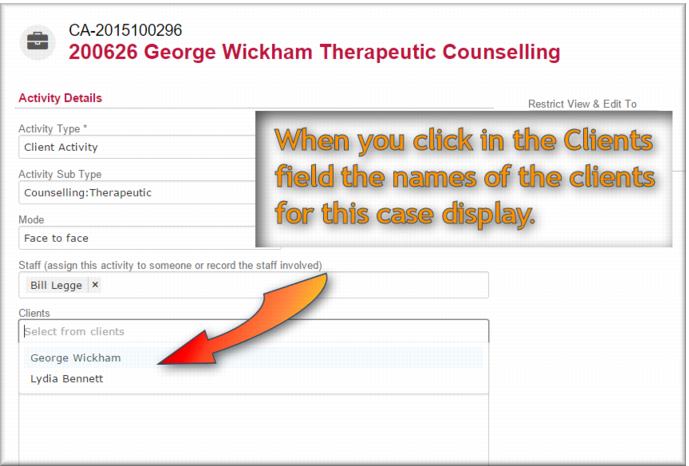
2 Click in the Clients field.
A list of available clients displays.
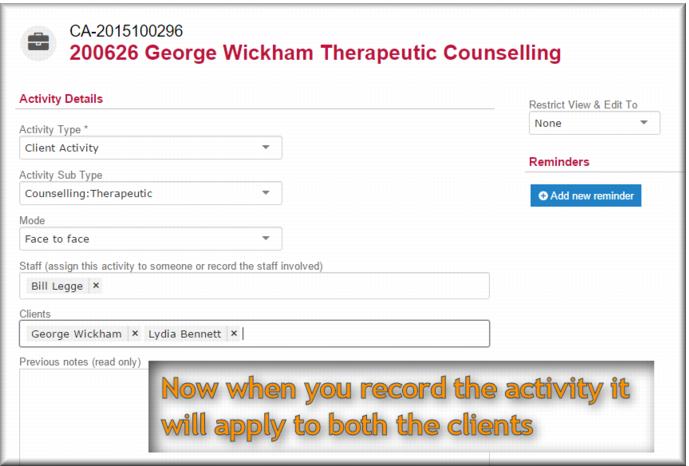
3 Select the clients you want to record against the activity.
The names display in the Clients field.
4 Complete all the other fields and process the activity as you would for any other therapeutic or financial counselling activity.
Processing activities for group case sessions
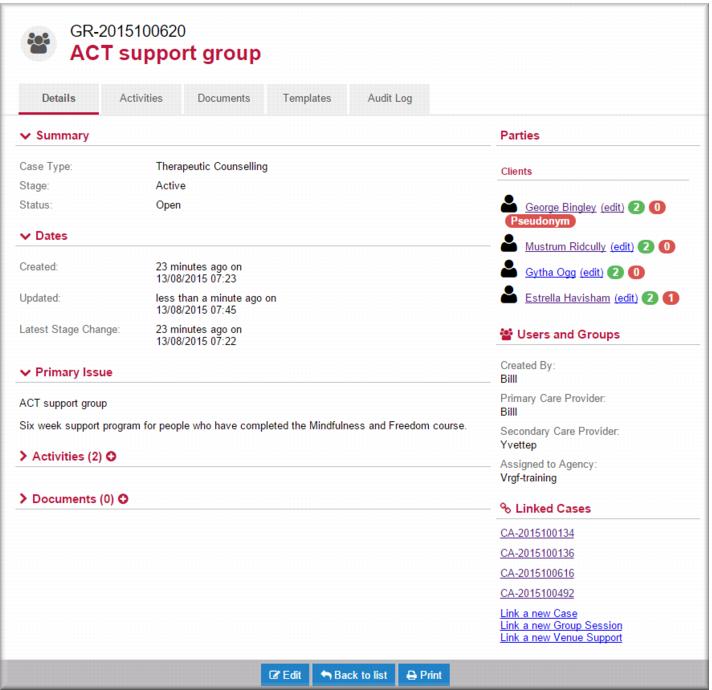
These activities involve more than one client and (usually) more than one staff. Typically, clients in group cases will have individual cases as well as their membership in a group case. Group case activities do not have subtypes. There are only three activity types against which you record your efforts in running group cases:
Session – covers all the work you do both direct and indirect time in actually running group sessions
Preparation – covers all the work you do in
program development and maintenance
Administrative – covers all the work you do in running and maintaining the group case.
You can schedule group sessions as for other activity types. This will also allow you to ensure that clients who have consented will receive SMS reminders of upcoming sessions.
In general, you would only expect to record direct time against session type activities.
| Often the work done in a group session will spill over into individual work with clients. For example, after a group session you spend half an hour working with one of your clients on issues arising from their participation. Where this happens you should record a separate TC or FC activity against the client’s individual case. |
To process an activity for a group case:
1 Open the group case record.
2 Click

in the
Activities section to open a new activity page.
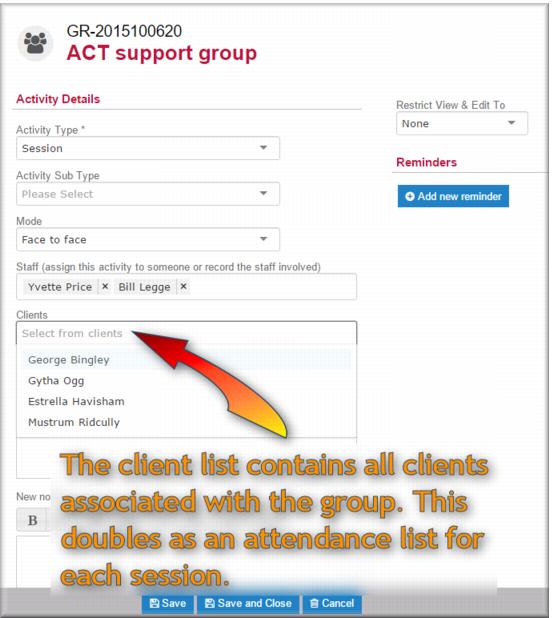
The primary and secondary care providers for the case display in the Staff field. 3 
Select the
Activity Type and
Mode.
4 In the Staff field, check that the correct care provider names display. Add or remove staff from the activity as required.
5 Click in the Clients field.
The client list for this case displays.
| If the activity type is Preparation you don’t need to select clients. |
6 From the list in the Clients field, select each client who attended the session.
7 In the New notes field enter your notes for the activity.
8 
Select the location, and date and time.
9 IF this was a session, enter the duration of the activity in the Duration field.
10 In the
Status field,

select
Completed.
The Timesheet displays. 11 Specify the direct, indirect and travel time for each of the participating staff.
12 Click

.
Cancelling a scheduled activity
You cancel activities by changing the status:
1 From the menu select My Activities.
The My Activities list displays.
| If it’s not your activity, you can locate it via either a case or activity search. |
2 In the list, locate the activity you want to reschedule and click

to open it in edit mode.
3 In the New notes field, enter a note explaining the reason for the cancellation.
4 In the
Status field,

select
No action required.
5 IF you set a reminder for yourself for the activity, in the
Reminders section click
6 Click

.
The activity is cancelled. Cancelling a saved activity
From time to time an activity might be recorded in error. For example, an activity might be mistakenly recorded against the wrong client or case. You can cancel a saved activity:
1 Open the case record containing the activity you want to cancel.
2 Select the Activities tab.
3 In the activities list, locate the activity and click

.
The activity record opens in edit view. 4 In the New notes field, enter a note explaining the cancellation.
5 In the
Status field,

select
No action required.
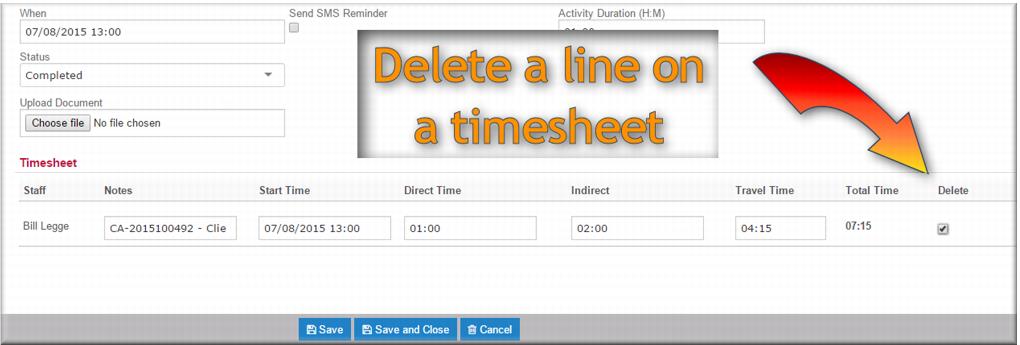
6 In the Timesheet, select Delete.
7 Click

.
| If you just want to remove a member of staff from a closed activity, delete them from the Staff field and delete their timesheet entry. Then save and close. |

![MCj04347500000[1]](../GHC102/images/GHC-102-PM.1.068.04.jpg)
![MCj04347500000[1]](../GHC102/images/GHC-102-PM.1.068.08.jpg)

![MCj04347500000[1]](../GHC102/images/GHC-102-PM.1.068.17.jpg)
![MCj04347500000[1]](../GHC102/images/GHC-102-PM.1.068.21.jpg)
![MCj04347200000[1]](../GHC102/images/GHC-102-PM.1.068.27.jpg)
![MCj04347500000[1]](../GHC102/images/GHC-102-PM.1.068.30.jpg)
![MCj04347500000[1]](../GHC102/images/GHC-102-PM.1.068.34.jpg)

![MCj04347500000[1]](../GHC102/images/GHC-102-PM.1.068.39.jpg)
![MCj04347200000[1]](../GHC102/images/GHC-102-PM.1.068.43.jpg)
![MCj04347200000[1]](../GHC102/images/GHC-102-PM.1.068.48.jpg)
![MCj04347200000[1]](../GHC102/images/GHC-102-PM.1.068.55.jpg)
![MCj04347500000[1]](../GHC102/images/GHC-102-PM.1.068.56.jpg)


![MCj04347500000[1]](../GHC102/images/GHC-102-PM.1.068.65.jpg)
![MCj04347500000[1]](../GHC102/images/GHC-102-PM.1.068.66.jpg)
![MCj04347500000[1]](../GHC102/images/GHC-102-PM.1.068.71.jpg)
![MCj04347500000[1]](../GHC102/images/GHC-102-PM.1.068.76.jpg)
![MCj04347500000[1]](../GHC102/images/GHC-102-PM.1.068.85.jpg)