Managing issues
It is common for clients who present to the Gambler’s Help program to have other issues that compound the impact of their gambling problems. Such issues might be outcomes of gambling or they might be contributing factors in a gambling problem. By documenting issues you are able to enrich the case history and provide additional important information your colleagues who might need to work with the client.
You can use the Issues function in the Gambler’s Help Connect case to document issues. You can add a description to each issue you document and also ascribe a resolution status to them.
| As part of the case record any issues your record are restricted to the agency where they were created. |
Recording issues
You can record co-presenting issues when a client initially presents, or subsequently as the case develops:

In the
Add Issues section of the edit case screen
In the
Issues tab of the case record
In the
Details tab of the case record in the
Issues section.
1 In the
Issues section click

.
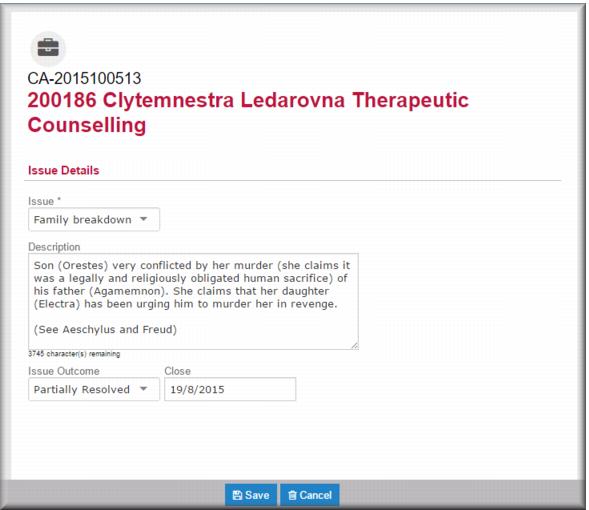
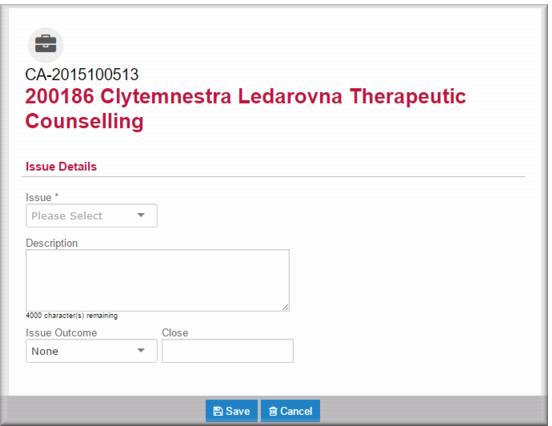
The Issue Details screen for the case displays. 2 In the
Issue field

select the issue category
3 Optionally, in the Description field, add notes describing the issue.
4 Optionally, in the
Issue Outcome field

select the issue status.
5 Click

.
| You can carry out the same process in the Issues tab by clicking  . |
Reviewing issues
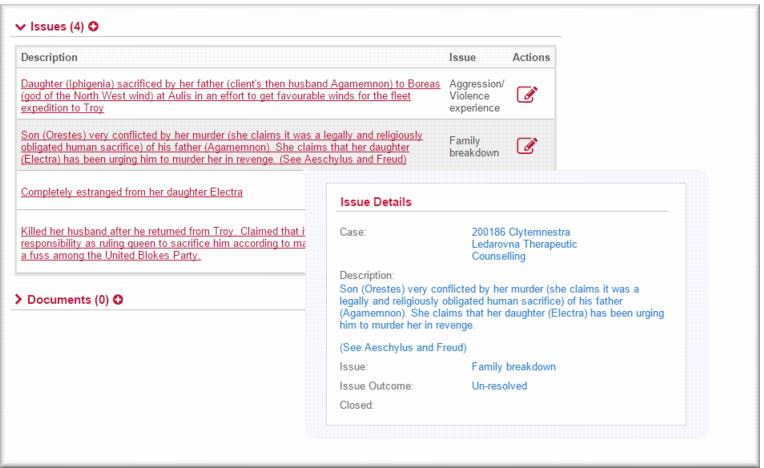
You can review issues associated with a case in the Issues section of the case record on the Details tab.
1 Open the case you want to review.
2 Expand the Issues section.
3 Hover your mouse over the issue you want to review.
The issue details display.
| To edit the issue click  . |
Editing issues
You can update an issue or mark an issue as closed if it no longer is an active influence on the case.
1 Open the case you want to review.
2 Expand the Issues section.
3 Click

next to the issue you want to edit.
The Issue Details screen displays. 4 In the Description field optionally add a note updating the issue details.
5 IF you want to close the issue:
In the
Issue Outcome field,

select the outcome status.
In the
Close field,

select the closure date.
6 Click

.
![MCj04347500000[1]](../GHC102/images/GHC-102-PM.1.075.01.jpg)
![MCj04347500000[1]](../GHC102/images/GHC-102-PM.1.075.02.jpg)
![MCj04347500000[1]](../GHC102/images/GHC-102-PM.1.075.08.jpg)
![MCj04347500000[1]](../GHC102/images/GHC-102-PM.1.075.11.jpg)