![MCj04347500000[1]](../GHC102/images/GHC-102-PM.1.077.1.jpg) | Since these are generic documents common to all local services you need to print them on your agency letterhead. |
| Since these are generic documents common to all local services you need to print them on your agency letterhead. |
 Attendance Confirmation Letter – send a letter to your client confirming their expected attendance at an appointment.Copy of Correspondence – cover letter to accompany copies of all correspondence received on the client’s behalf (usually by a financial counsellor).Closure for Client – notice of case closure from a financial counsellor after client disengages without notice.Consent to Share Information – to record freely given informed consumer consent to share their information with a specific agency/ies for a specific purpose/s.Discharge Summary – a discharge checklist for the client listing goals, plans and resources to help them maintain their progress.DNA Letter – letter to client after they failed to attend an appointment without notice of cancellation.Letter of Support to Corrections – letter of support to Corrections from a therapeutic counsellorReferral Authorisation – authorisation for contact from another local service where client is changing agencies.Case Activity Report – list of all activities (all statuses) in a case including case notes.
![MCj04347500000[1]](../GHC102/images/GHC-102-PM.1.077.2.jpg) | Should you identify a requirement for new templates, or changes to existing templates, you should talk to your Gambler’s Help Connect reference group member at your agency or your manager. |
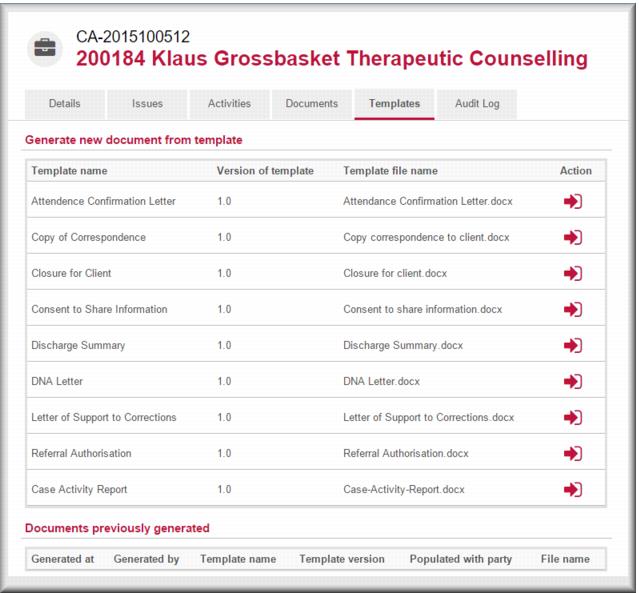
 for the template you want to use.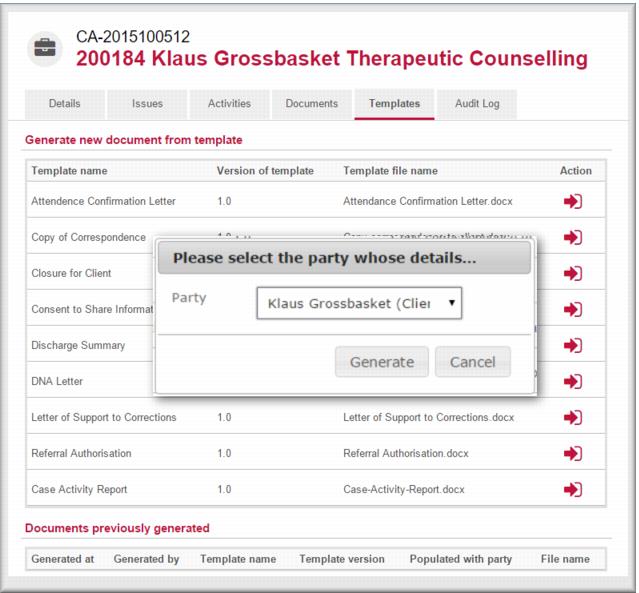
 select the client for whom you want to generate the template.
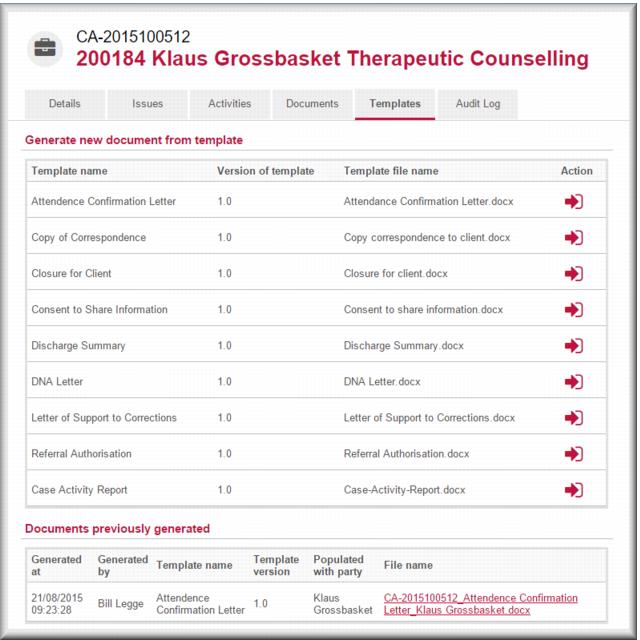
![MCj04347500000[1]](../GHC102/images/GHC-102-PM.1.077.9.jpg) | Document download processes can vary depending on your browser and Windows version. Talk to your local IT support if you need help with this. |