Scheduling an activity
To schedule an activity:
1 Locate and open the case for which you want to schedule an activity.
2 Using either of the methods above, open a new activity page.
3 In the
Activity Type field,

select the activity type.
4 In the
Activity Sub Type field,

select the required sub type.
5 If applicable, in the
Training Content field,

select the training program or programs related to this activity.
| See Activities for a list of the activity types and sub types. |
6 In the
Mode field,

select the contact mode:
 Face to face
Telephone Online Other.
7 In the Staff field the name of the venue support worker for the case defaults. You can change this if required.
8 In the Venues field, the name of the venue defaults.
9 In the New notes field enter a description of the planned activity if required.
10 In the
Location field,

select the location for the planned activity.
11 In the
When field,

select the date and time for the planned activity.
12 In the
Activity Duration (H:M) field,

select the planned duration of the activity.
13 Click

.
The activity is scheduled. Setting reminders for an activity
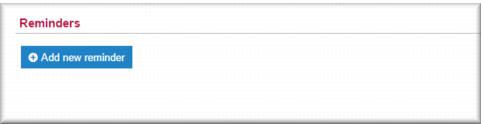
You can set yourself (and/or other participating staff) reminders for scheduled activities. You do this in the Reminders section of the activity record.
1 With the activity record in edit mode click

.
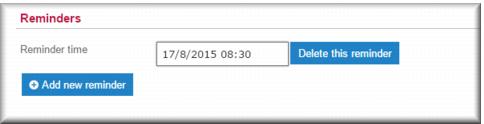
The Reminder time field displays. 2 Click in the Reminder time field and then select your desired reminder date and time.
The reminder is saved when you save the activity.
| You can add more reminders for the activity if required. You can also change the reminder time as appropriate. To remove a reminder click  . |
Rescheduling activities
If the planned time and date for an activity changes you can reschedule it. If you have set a reminder for the activity for yourself you can reschedule that as well:
1 From the menu select My Activities.
The My Activities list displays.
2 In the list, locate the activity you want to reschedule and click

to open it in edit mode.
3 In the When field, select the new date and time for the activity.
4 IF you set a reminder for yourself for the activity, in the Reminders section, in the Reminder time field select the new date and time for the reminder.
5 Click

.
The activity is rescheduled. Completing a scheduled activity
To complete a scheduled activity you change the activity status to Completed, record the relevant staff and travel times for the activity, and add a progress note.
To locate the activity you want to process you can access it from:
Your
My Activities list or calendar
The
Activities tab of the case record
The
Activities section of the
Details tab of the case record
Your activities reminders.
| If you are processing the scheduled activity for someone else you access the activity from the case record. |
1 Using one of the methods described above locate the activity you want to complete.
2 Click

to edit the activity.
The activity opens in edit mode. 3 In the New notes field enter a progress note to describe the completed activity.
4 In the
Status field,

select
Completed.
The Timesheet displays at the bottom of the page. If you specified a duration for the activity this value now displays in the Staff time field. 5 In the Timesheet specify staff and travel time as applicable.
6 Click

.
The activity is completed. The notes you wrote for the activity display in the Previous notes (read only) field.
![MCj04347500000[1]](../GHC102/images/GHC-102-PM.1.128.04.jpg)
![MCj04347500000[1]](../GHC102/images/GHC-102-PM.1.128.13.jpg)
![MCj04347500000[1]](../GHC102/images/GHC-102-PM.1.128.17.jpg)