Recording an integrated service activity
All members of a Gambler’s Help agency team can record activities against integrated service cases. The process is similar to recording other types of activities in Gambler’s Help Connect:
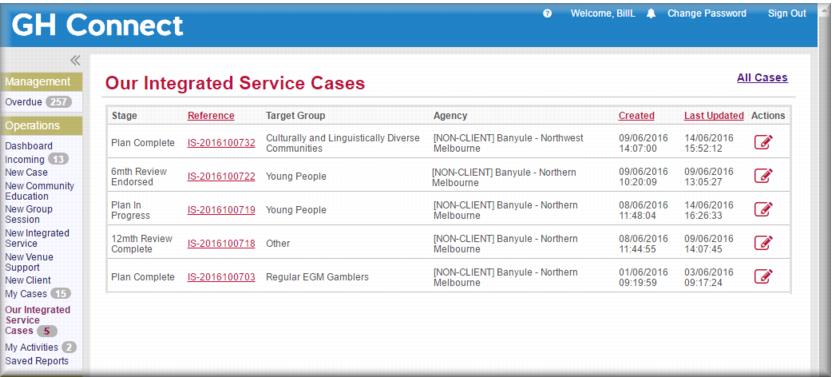
1 From the menu select Our Integrated Service Cases.
The integrated service case list for your agency displays.
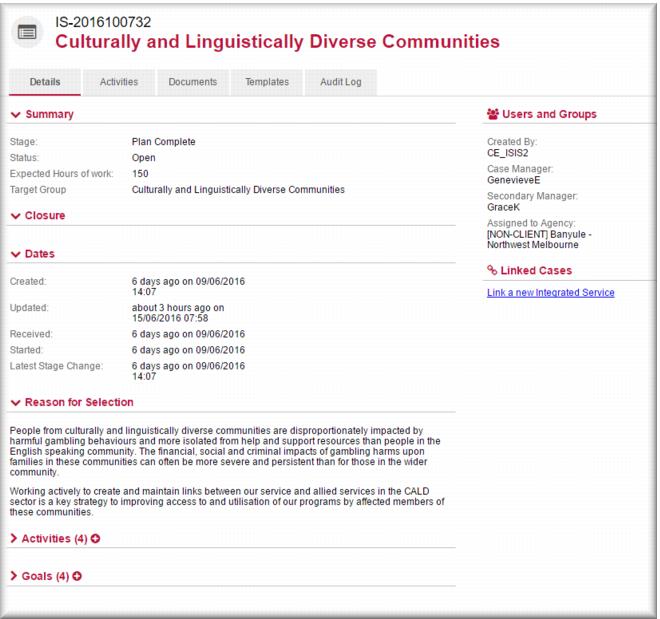
2 Click the Reference link to the case you want to record an activity for.
The Case Details page displays.
3 In the
Activities section click

.
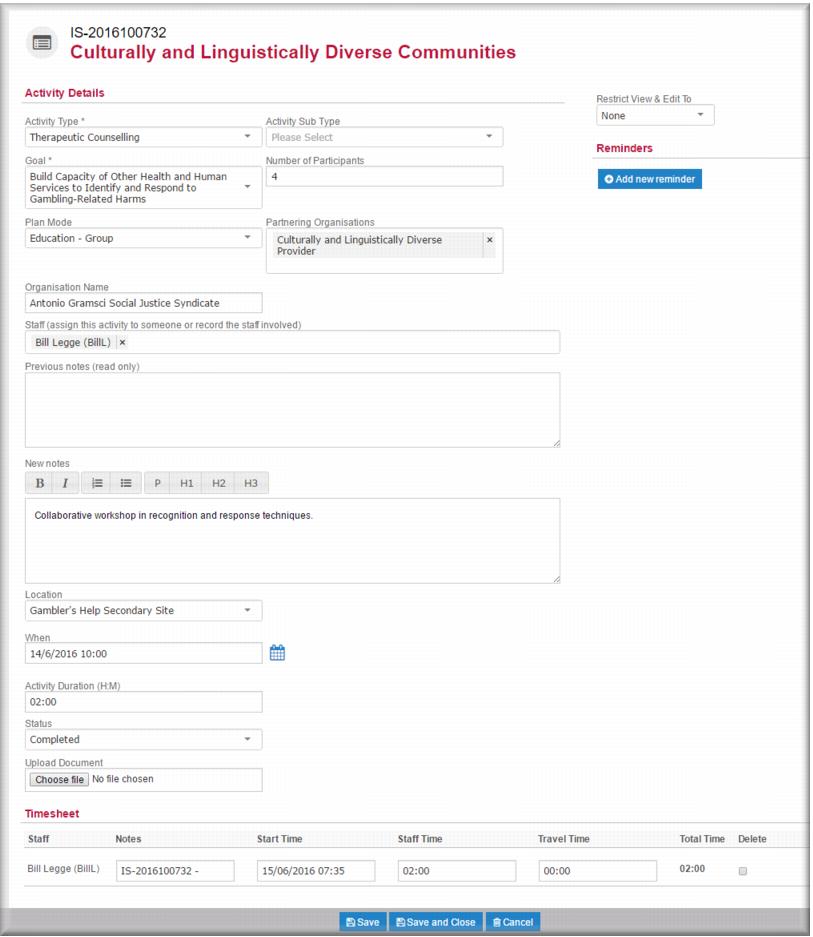
The activities details page for the case displays. 4 In the
Activity Type field,

select your activity type, from:
 Community Education
Financial Counselling Therapeutic Counselling Venue Support Practitioner.
5 In the
Goal field,

select the case goal to which this activity relates.
6 IF relevant, enter the number of participants in this activity.
| In some activities, for example, preparation for a presentation or attending a network meeting, the number of participants might not be reportable. In others, such as facilitating an education session for other service providers, the number of participants will be of considerable importance. |
7 In the
Plan Mode field,

select from:
Education – Group Education – Individual Event/Forum Networking/Committee Working Group Presentation 8 IF the activity relates to organisations you are working with, in the
Partnering Organisations field

select the organisation type. This is a multi-select field so you can include more than one organisation type.
9 IF you worked with partnering organisations for this activity, in the Organisation Name field, enter the name of the organisation.
| If there is more than one organisation, just enter each name separated by a comma. |
10 The
Staff field defaults with the names of the case manager and secondary manager, delete these if necessary and

select the name(s) of the staff who did the activity.
11 In the New Notes field, enter your summary notes about the activity.
12 In the
Location field,

select the location where the activity took place.
13 In the
When field,

select the date and time of the activity.
14 In the Activity Duration (H:M) field specify the duration of the activity.
| Duration includes any preparation or follow up time associated with the activity as well as the time for the activity itself. For example, if you spent an hour preparing for a training session, an hour delivering training and another hour evaluating the session, the activity duration would be three hours. Travel time is recorded separately. |
15 In the
Status field,

select
Completed.
The timesheet displays. 16 In the time sheet, adjust the values in the Staff Time and Travel Time columns for each staff member as necessary.
17 Click

.
The activity is saved to the case. Scheduling integrated service case activities
You can schedule a future integrated service case activity as for other activities. When you do this Gambler’s Help Connect will prompt you with a reminder 24 hours before the scheduled activity. You don’t need to complete all the details for a scheduled activity since you can add these when you complete the activity later:
1 Open the case and then click

to open a new activity page.
2 Enter or select the relevant values for:
Activity Type Goal Plan Mode Staff Location When Activity Duration (H:M).
3 Leave the Status field unchanged. (Scheduled status is Opened).
4 Click

.
| To add a new reminder click  and then specify the reminder date and time you want. |
![MCj04347500000[1]](../GHC102/images/GHC-102-PM.1.162.07.jpg)
![MCj04347500000[1]](../GHC102/images/GHC-102-PM.1.162.10.jpg)
![MCj04347500000[1]](../GHC102/images/GHC-102-PM.1.162.14.jpg)
![MCj04347500000[1]](../GHC102/images/GHC-102-PM.1.162.19.jpg)