Conduct the client search
As with other new case activities you start by doing a client search to identify whether the client has a history with the program.
1 Open the client record in view mode.
2 IF there are any changes of detail:

Click

to open the client record and make the relevant changes
Click

to save the changes and return the record to view mode.
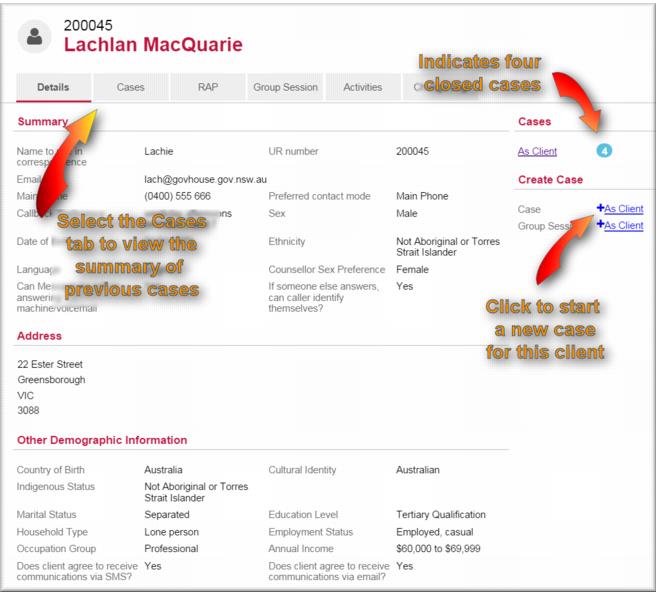
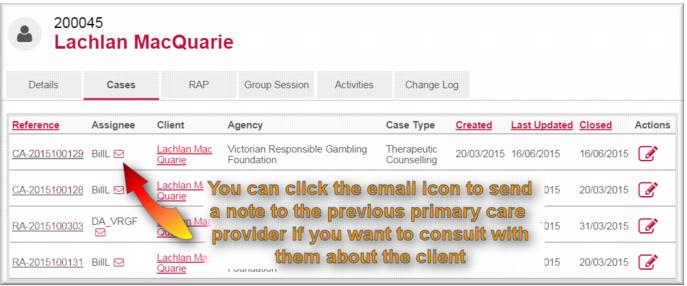
3 Select the Cases tab to view the summary of the client’s case history.
4 Review the case history summary to ensure there are no open cases – if there are, you might want to follow up with the local service concerned.
| IF the client gives their consent, you have the option of emailing the care provider(s) for previous cases to consult with them about the client history. |
Create the case
Having identified the client record and established that it is appropriate to create a case for the client you can proceed with the new case. You do this from the Details page of the client record.
1 In the Create Case section of the client details page click Case +As Client.
The New Case page displays with the client’s name in the Clients field.
2 Complete the new case details as you would for a new case for a new client.
![MCj04347500000[1]](../GHC102/images/GHC-102-PM.1.091.1.jpg)
![MCj04347500000[1]](../GHC102/images/GHC-102-PM.1.091.6.jpg)