Scheduled activities and SMS reminders
In Gambler’s Help Connect you can schedule future activities such as appointments and then complete them after the event. Scheduling an activity for a practitioner case enables Gambler’s Help Connect to:

Send an SMS reminder to the client (subject to their consent and an available mobile number)
Flag your unavailability for the scheduled date and time to other
Gambler’s Help Connect users at your local service
Display the scheduled activity in your
My Activities page (until you complete it)
Display a reminder of the upcoming activity for you.
To receive SMS reminders of appointments, client must have a mobile number registered as their main phone and have consented to receive SMS messages from the Gambler’s Help service.
You can view scheduled activities in the case record and the activities calendar.
Alternatively you can process all your client activities after the event – if an SMS reminder is not required.
Some activities don’t require scheduling in Gambler’s Help Connect. For example, case type activities where the client is not present don’t need to be booked in Gambler’s Help Connect – unless you want to block out the time. Obviously, you can’t schedule unplanned activities such as an unexpected call from a client.
For anonymous cases you always record and complete an activity as the last step in processing the case.
Activity reminders
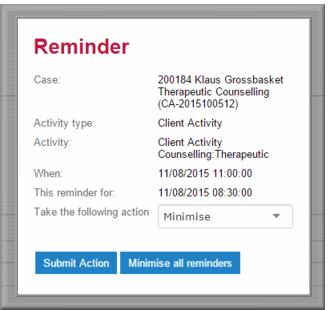
You can set reminders for your activities to prompt you of upcoming appointments. These display on the notifications pane under the

reminder notification icon approximately 24 hours before the scheduled activity and remain until you process the activity. Overdue activities display a pop-up reminder when you log on to
Gambler’s Help Connect.
When a scheduled activity for which you have set a reminder becomes due – or overdue – a reminder pop-up displays when you log on to Gambler’s Help Connect.
| Reminders will display when they are due, without reference to whatever you might be doing in Gambler’s Help Connect at the time. For example, you might be editing a case for Lydia, when a reminder about an activity for John displays. |
Activity documents
You can attach a single document to an activity. When you do this you can view the document from the activity record or from the documents tab in the case record. If you have multiple documents you want to attach, you can either attach them to the case file or combine them into a single document to attach to the activity.
| When you attach a document directly to an activity record you can’t edit the metadata, that is, edit the title or description text. You can do these things to documents attached to the case record. |
Activity calendar
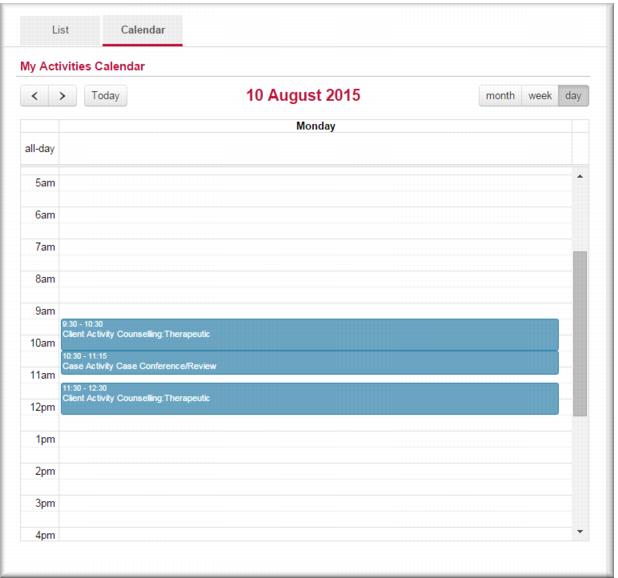
The calendar view in your My Activities list provides a month, week or day view of your scheduled activities. You can click an activity entry in the calendar to open the activity record in view mode. When you complete an activity it no longer displays in the calendar.
Activity duration
When you schedule an activity you also set its length. This is the time that is blocked out in your calendar. When you process the activity, the planned time of the activity automatically transfers to the direct time field in the timesheet. You can change this value if need be.
| For example, you scheduled an hour for a session with a client, but the session ran over by another thirty minutes. While the scheduled duration of the activity was an hour, the actual direct time was an hour and a half. When you process the activity, the direct time field in the timesheet will default to an hour which you then change to ninety minutes – reflecting the actual direct time. |
![MCj04347500000[1]](../GHC102/images/GHC-102-PM.1.108.1.jpg)
![MCj04347500000[1]](../GHC102/images/GHC-102-PM.1.108.4.jpg)
![MCj04347500000[1]](../GHC102/images/GHC-102-PM.1.108.5.jpg)
![MCj04347500000[1]](../GHC102/images/GHC-102-PM.1.108.7.jpg)