Maintaining integrated service cases
Having created an integrated service case, you update the goal(s) and the case as it goes through periodic reviews.
Case status
Each integrated service case is an element of your annual plan. The statuses of your IS cases reflect the collaborative planning and review you do with the foundation. As your integrated service cases progress through this process, you update their status accordingly.
Case Stage | Explanation |
Plan In Progress | Plan is under development |
Plan Complete | Plan ready for VRGF endorsement |
Plan Endorsed | Plan endorsed by VRGF |
6mth Review Complete | Half year review ready |
6mth Review Endorsed | Half year review endorsed by VRGF |
12mth Review Complete | End of year review ready |
12mth Review Endorsed | End of year review endorsed by VRGF |
Completed | Case closed. |
Goal status
Goals have four possible statuses which are ascribed to them at the six and twelve month reviews. For the six month review, these are:

On Track
Not On Track
Achieved
Discontinued.
For the end of year review these are:
Discontinued
Not Achieved
Partially Achieved
Achieved.
| It’s not necessary to wait for the six or twelve month reviews to define a goal as achieved or discontinued should this be an accurate reflection of the goal status. |
Updating case status
Your integrated service cases go through a process of periodic reviews from inception to closure. You document these by changing the status of the case in the Stage field, and, for the mid-year and end-of-year reviews, entering a brief summary of the progress of the case.
1 From the menu select Our Integrated Service Cases.
The integrated service case list for your agency displays.
2 Click

to edit the case.
The case displays in view mode. 3 Click

.
The case opens for editing. 4 In the
Status section in the
Stage field,

select the stage for the case.
5 IF the status change is for the six or twelve month review, enter your notes in the Mid year summary or End of year summary fields.
| There is a 4000 character limit on these fields, which equates to about 350 words. |
6 Click

.
Updating goal status
Since the substance of your periodic case review is derived from your progress in achieving goal objectives, you should update your case goal(s) at the same time you update the case status.
1 From the menu select Our Integrated Service Cases.
The integrated service case list for your agency displays.
2 Click the Reference link to open the case.
The case displays in view mode.
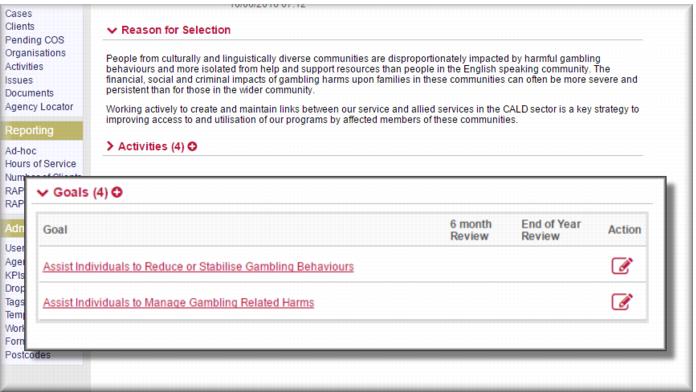
3 Expand the Goals section to view the goal list.
4 Click

next to the goal you want to update.
The goal opens for editing. 5 Depending on where you are in the review cycle, in the
6 month Review or
End of Year Review field,

select the goal status.
6 Enter your review notes in the relevant field.
| There is a 4000 character limit on these fields, which equates to about 350 words. |
7 Click

.
Goal status is updated. Closing an integrated service case
You close integrated service cases at the end of the financial year, or when case goals are met (or abandoned), whichever comes first.
| When you close an integrated service case, it no longer displays in the Our Integrated Service Cases list – although it can be located using a case search. Hence, you are strongly advised to check thoroughly that your team have all recorded all their activities against this case before you close it. |
1 From the menu select Our Integrated Service Cases.
The integrated service case list for your agency displays.
2 Click the Reference link to open the case.
The case displays in view mode.
3 Click

.
The case opens for editing. 4 In the
Status section in the
Stage field,

select
Completed.
5 In the
Closure section in the
Closed date field,

select the closure date.
6 Click

.
The case is closed. ![MCj04347500000[1]](../GHC102/images/GHC-102-PM.1.158.01.jpg)
![MCj04347500000[1]](../GHC102/images/GHC-102-PM.1.158.05.jpg)
![MCj04347500000[1]](../GHC102/images/GHC-102-PM.1.158.10.jpg)
![MCj04347200000[1]](../GHC102/images/GHC-102-PM.1.158.12.jpg)