 Case – where you specify:Case – where you specify:
 The nature of the client’s gambling and debt issuesThe primary issue(s) motivating the client’s presentationRisk assessment of the potential for harm to self or otherCase typeAgency where the case is to be located.Anonymous – where you specify details relating to anonymous cases.Counselling – where you describe the client’s trajectory toward the referral.External Referral – where you specify details of any facilitated referrals to other non - Gambler’s Help services you have made for the client.Add Issues – where you identify other client issues – additional to the primary issue.Assignment – where you assign a primary care provider and optionally a secondary care provider to the case.Activities – where you have the option of scheduling activities for the case.Closure – where you specify case closure details.Receipt – where you specify key details of the referral mode.Case Link – where you have the option of linking this case to another case or cases in this agency.
![MCj04347500000[1]](../GHC102/images/GHC-102-PM.1.089.01.jpg) | Note that the client name displays as a tile in the Clients field. You can click this at any time during the case creation process to open the client page to add or change details. |
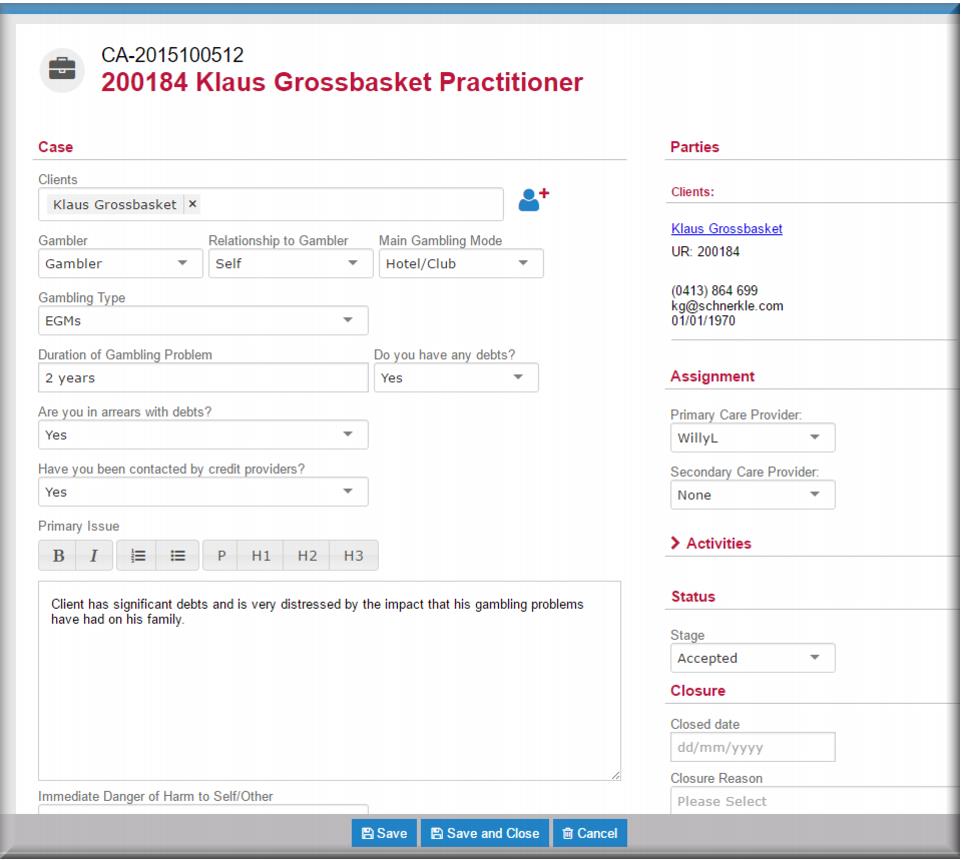 GamblerRelationship to GamblerMain Gambling Mode Gambling TypeDuration of Gambling Problem.Do you have any debts? Are you in arrears with debts? Have you been contacted by credit providers?
![MCj04347500000[1]](../GHC102/images/GHC-102-PM.1.089.03.jpg) | You can enter up to 4000 characters into this field – 500 words or thereabouts. Should you need to include a lengthier description of the primary issue(s) consider attaching a Word document to the case. See Managing documents for practitioner cases for more information about how you do this. |
If… | Then |
…you have identified risk issues | o  select Yes in the Immediate Danger of Harm to Self/Other field select Yes in the Immediate Danger of Harm to Self/Other fieldo Describe the risks in the Details of Danger & Response Provided field |
…you have identified no risk issues | o  select No in the Immediate Danger of Harm to Self/Other field select No in the Immediate Danger of Harm to Self/Other field |
…you aren’t sure whether there are risk issues l | Leave the Immediate Danger… field blank and return to it later when you have more information. |
 select Practitioner.
![MCj04347500000[1]](../GHC102/images/GHC-102-PM.1.089.07.jpg) | See Working with families in practitioner cases for details on how to use the Family Therapy field. |
 select your agency.
 select the source of the referral.
 select how the client knew about the service.
  select the service type in the Other Non-Gambler’s Help Services Client is in contact field.
![MCj04347500000[1]](../GHC102/images/GHC-102-PM.1.089.13.jpg) | Don’t confuse the Referred By field where you record how the client learned about the service (and that it might be helpful to them personally), with the Received By field where you record how this referral was initiated. |

 select the service type in the Referred To field – otherwise leave it blank.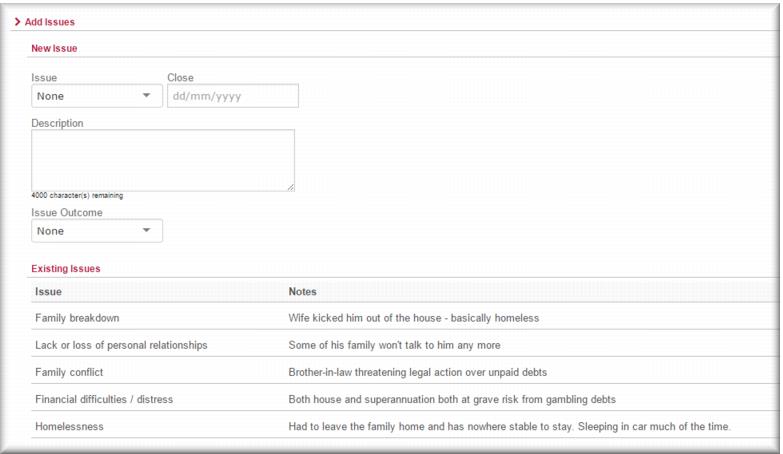
 Select the issue in the Issues field.
  .
.![MCj04347500000[1]](../GHC102/images/GHC-102-PM.1.089.19.jpg) | You can close issues and record a resolution outcome as required. |
![MCj04347500000[1]](../GHC102/images/GHC-102-PM.1.089.20.jpg) | Telephone counsellors at the Gambler’s Helpline don’t need to do this step. |
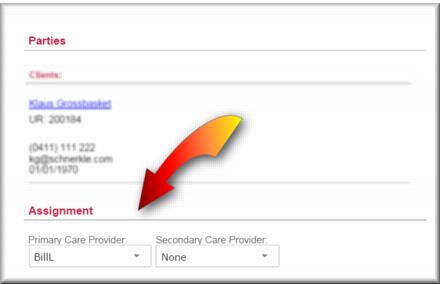
 select the assignee.You can set a reminder for the activity. This can be especially helpful if you want to assign the case to a colleague for follow up.Scheduling the activity simplifies processing later on by setting the due date and time for the activity.
 ![MCj04347500000[1]](../GHC102/images/GHC-102-PM.1.089.23.jpg) | See Managing activities for more information about scheduling and processing case and client activities. |
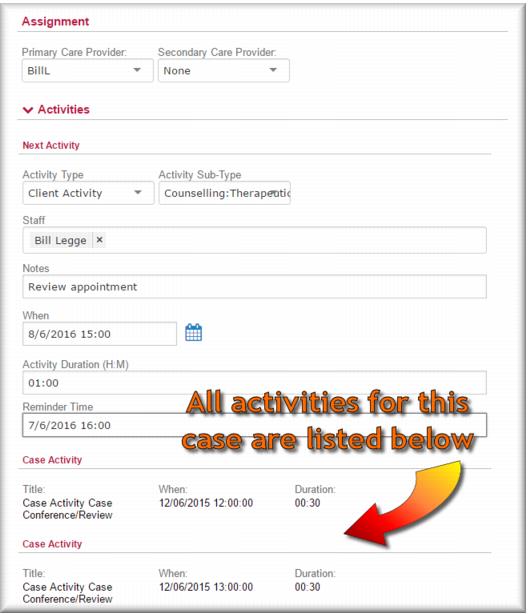
 to open the Activities sub-menu.
 Select the Activity Type.
 Select the Activity Sub-Type.
 ![MCj04347200000[1]](../GHC102/images/GHC-102-PM.1.089.28.jpg) | The Note field is mandatory – if you don’t enter something in this field you can’t save the case record. |
![MCj04347500000[1]](../GHC102/images/GHC-102-PM.1.089.29.jpg) | See Case stages for more information about case statuses. |
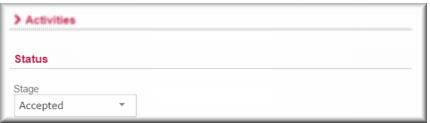
 select:Acknowledged – if you aren’t ready to allocate the caseAssigned – if you are handing the case off to a colleague for follow up Accepted – if you (or the nominated primary care provider) are ready to begin service with this case.Started – when the case was createdReceived – if the case was referred from outside your local service, e.g. from the Gambler’s Helpline, then this is the date the case was first viewed.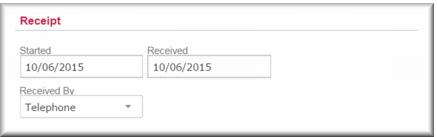
 select the referral mode.
![MCj04347500000[1]](../GHC102/images/GHC-102-PM.1.089.34.jpg) | If you receive a referral from the Gambler’s Helpline, the Received By field should already show this – if this is the case don’t change it. |
 .
.