Creating a practitioner callback case
The process for creating a callback case is similar to that for creating a new case for a new client but does not require the same level of information.
While it is probable that the person has no history with the program, it is still good practice to start with a client search to eliminate the possibility they have an existing record – there is nothing to say a person with a previous history in the program can’t have a callback if that is what they prefer.
Having established that the client has no case history in the Gambler’s Help program:
1 From the menu select New Case.
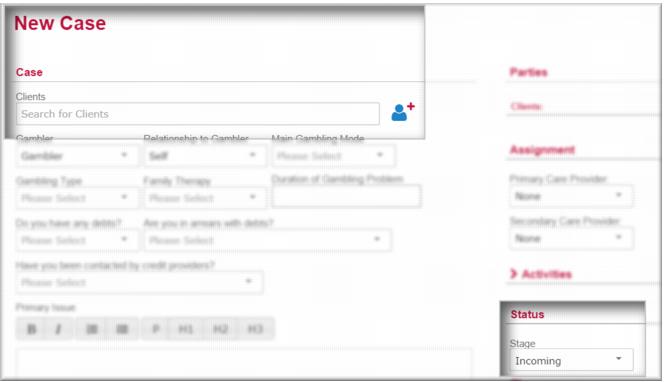
The New Case screen displays.
2 On the
New Case page, in the
Clients field, enter the client’s name and then click

.
The Case> New Individual as Client page displays. This page is an overlay on the case page.
Create the client record
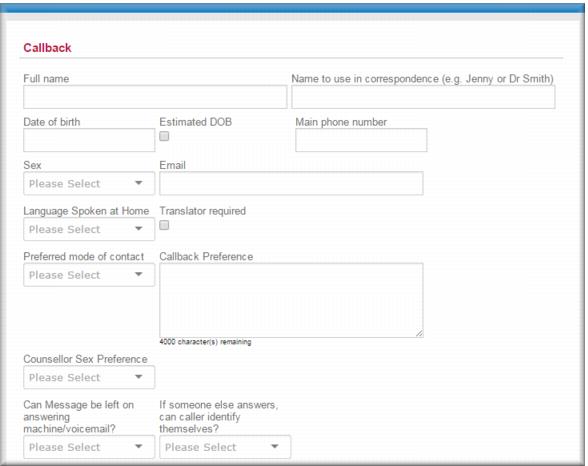
At a minimum you need to complete the Callback section of the client record to specify the client’s identity details and their contact preferences and expectations.
3 Enter the client’s identity details:
 Full Name
The Name to use in correspondence defaults the given name from your entry in this field, you can change it if appropriate.Date of Birth Select the Estimated DOB checkbox where you are not able to specify the date of birth with full confidence. Main Phone Number Sex Email Language Spoken at Home.
3 Specify the client’s contact preferences. This is really important information for clients with any case type.
Preferred mode of contact Callback Preference - enter the client’s preferred times and mode for contact.
Counsellor Sex Preference select the client’s preference.
Can Message be left on answering machine/voicemail If someone else answers, can caller identify themselves? | While these are the minimum needed to set up the client record for a callback case, you can also add information in other sections of the client record if the client provides it. |
3 When you have completed all the relevant sections of the page, click

.
The client page closes and the case page re-displays populated with the client details you recorded.
Complete the case
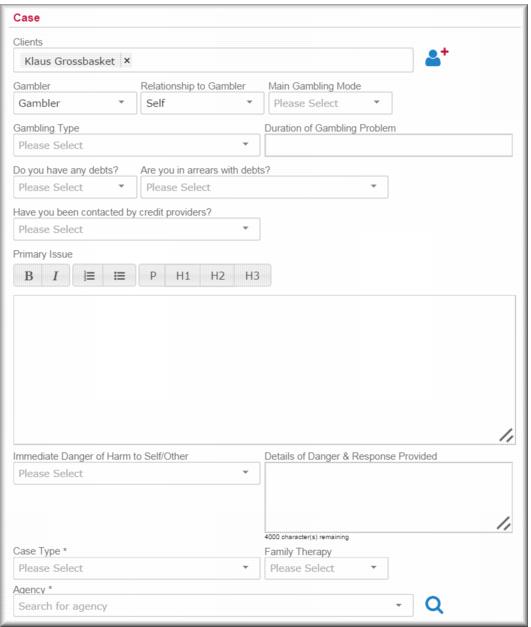
In the Case section of the page you complete the key details defining the case.
For a callback case, at a minimum you must specify the case type and agency, however, the more information you can elicit about the case, the better the person providing the callback will be able to respond to the client.
1 Where the information is available, specify the gambling attributes of the case:
Gambler Relationship to Gambler Main Gambling Mode Gambling Type Duration of Gambling Problem.
2 Where the information is available, specify debt details:
Do you have any debts? Are you in arrears with debts? Have you been contacted by credit providers? 3 In the Primary Issue field, summarise the presentation.
4 IF you have identified risk issues, specify these in the Immediate danger of harm… and Details of danger… fields.
5 In the
Case Type field

select the
Callback.
6 In the
Agency field,

select your agency.
7 In the
Assignment section, in the
Primary Care Provider field,

select the practitioner to whom you want to assign the callback.
8 Click

to open the
Activities sub-menu.
The Activities section expands. If there are any other scheduled or completed activities against this case they display in summary below. Your name displays in the Staff field. | It is very important that you schedule the callback activity at the time the client requested it. |
9 In the
Activity Type field, 
select
Client Activity and in the
Activity Sub-Type field

select
Callback.
10 In the
Staff field

select the person who will be making the callback (typically the primary care provider).
11 In the Note field enter a brief note about the activity.
| The Note field is mandatory – if you don’t enter something in this field you can’t save the case record. |
12 In the When field specify the required date and time for the client to receive the callback.
13 In the Activity Duration (H:M) field specify the scheduled length of the activity.
14 In the Reminder Time field set a reminder for the counsellor taking the callback.
15 In the
Stage field

select:
Incoming – if you are a telephone counsellor referring the callback to a local service Acknowledged – if you aren’t ready to allocate the case Assigned – if you are handing the case off to a colleague for follow up
Accepted – if you (or the nominated primary care provider) are ready to begin service with this case.
| See Case stages for more information about case statuses. |
16 In the
Receipt section, in the
Received By field,

select the mode.
17 Click

.
![MCj04347500000[1]](../GHC102/images/GHC-102-PM.1.095.01.jpg)
![MCj04347500000[1]](../GHC102/images/GHC-102-PM.1.095.05.jpg)
![MCj04347200000[1]](../GHC102/images/GHC-102-PM.1.095.12.jpg)
![MCj04347200000[1]](../GHC102/images/GHC-102-PM.1.095.16.jpg)
![MCj04347500000[1]](../GHC102/images/GHC-102-PM.1.095.18.jpg)